
Parent guide
Get started with Clubero in minutes.
Everything a parent needs to follow their child: call-ups, absences, notifications and the club wall.
- From the mobile app
- Real-time notifications
- Data protected
The essentials, step by step.
Eight detailed, step-by-step procedures with a screenshot for each step.
Open your parent account
It all starts with your club's invitation. Set up your access in a few minutes.
 1
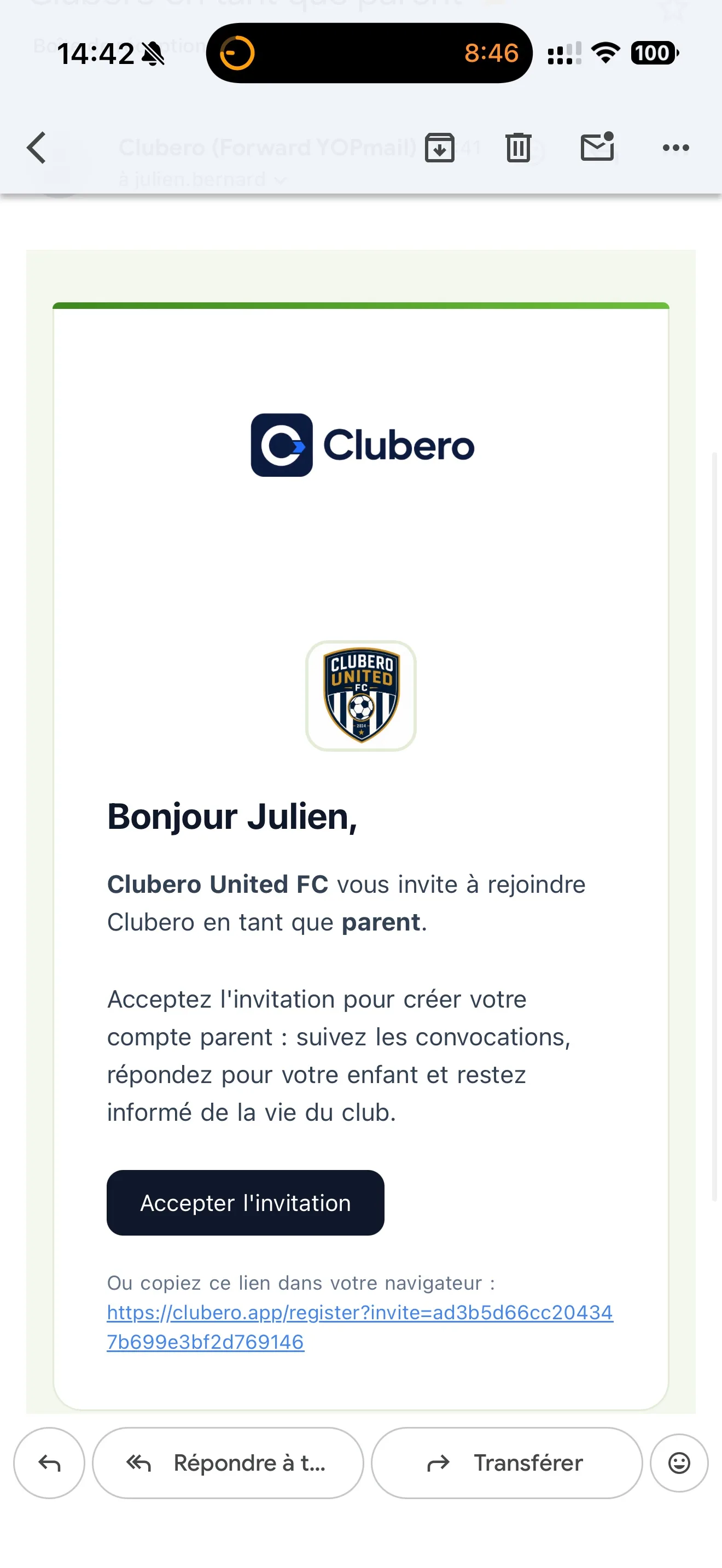
1Open your club's invitation email and tap "Accept invitation".
 2
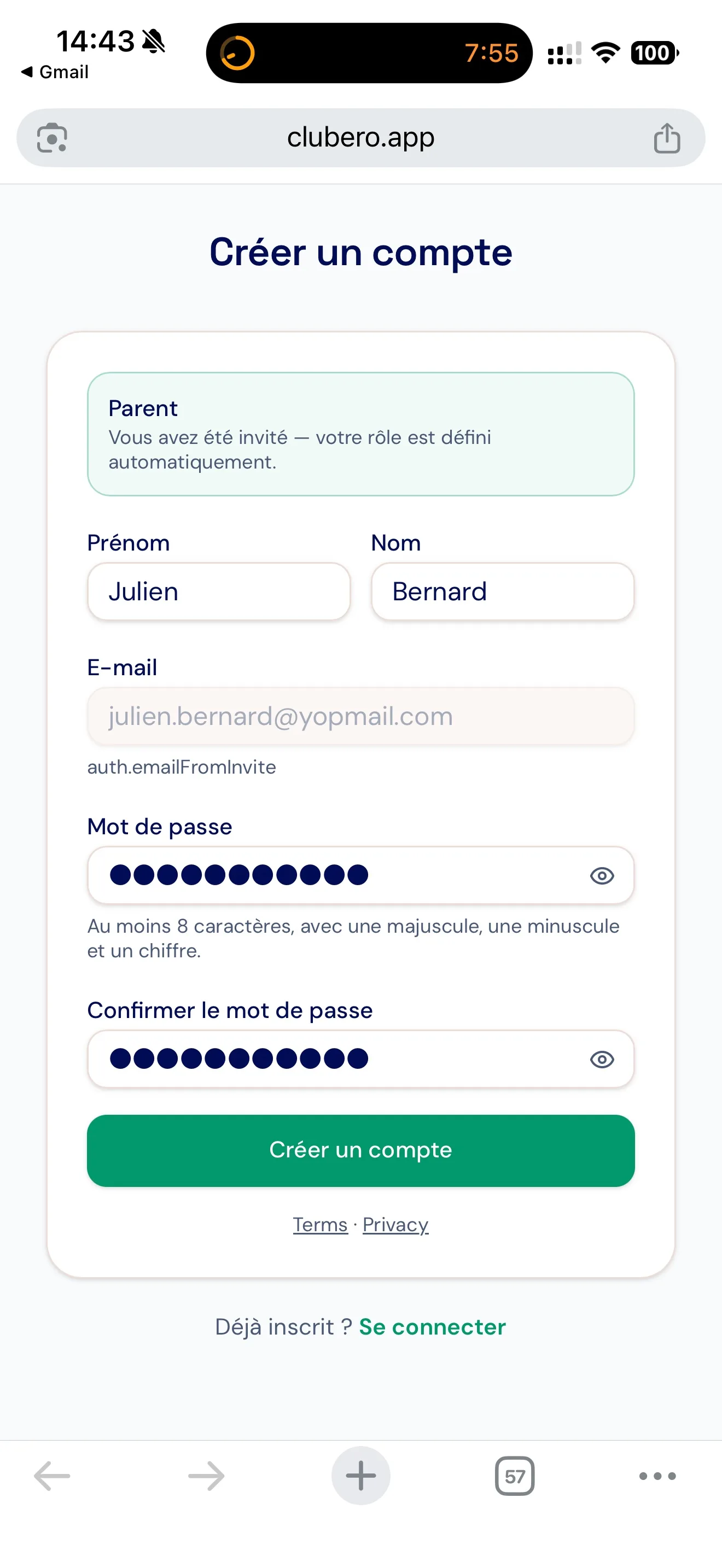
2Enter your first and last name, then create your password (your email is already pre-filled). Tap "Create account".
 3
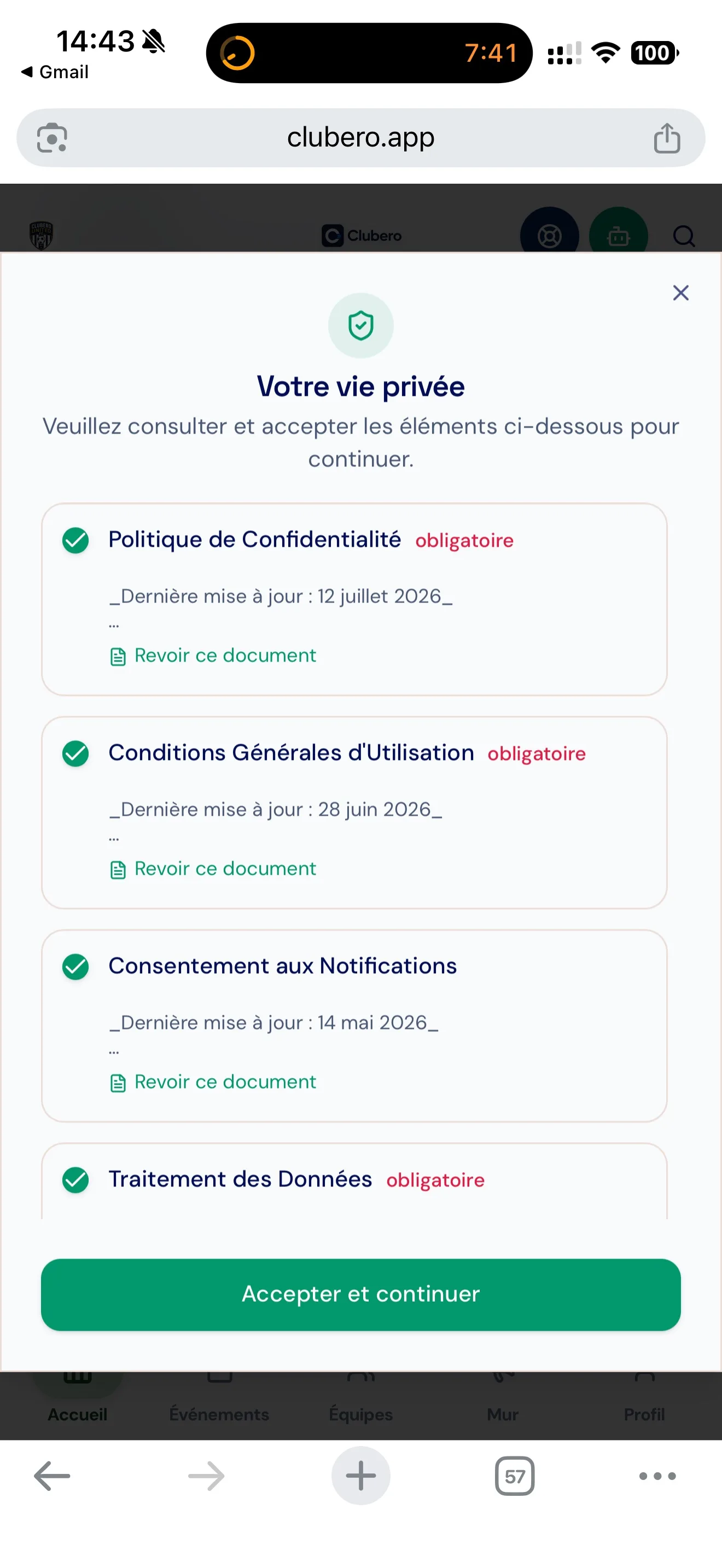
3Review and accept the consents (privacy, terms, notifications, data processing), then "Accept and continue".
 4
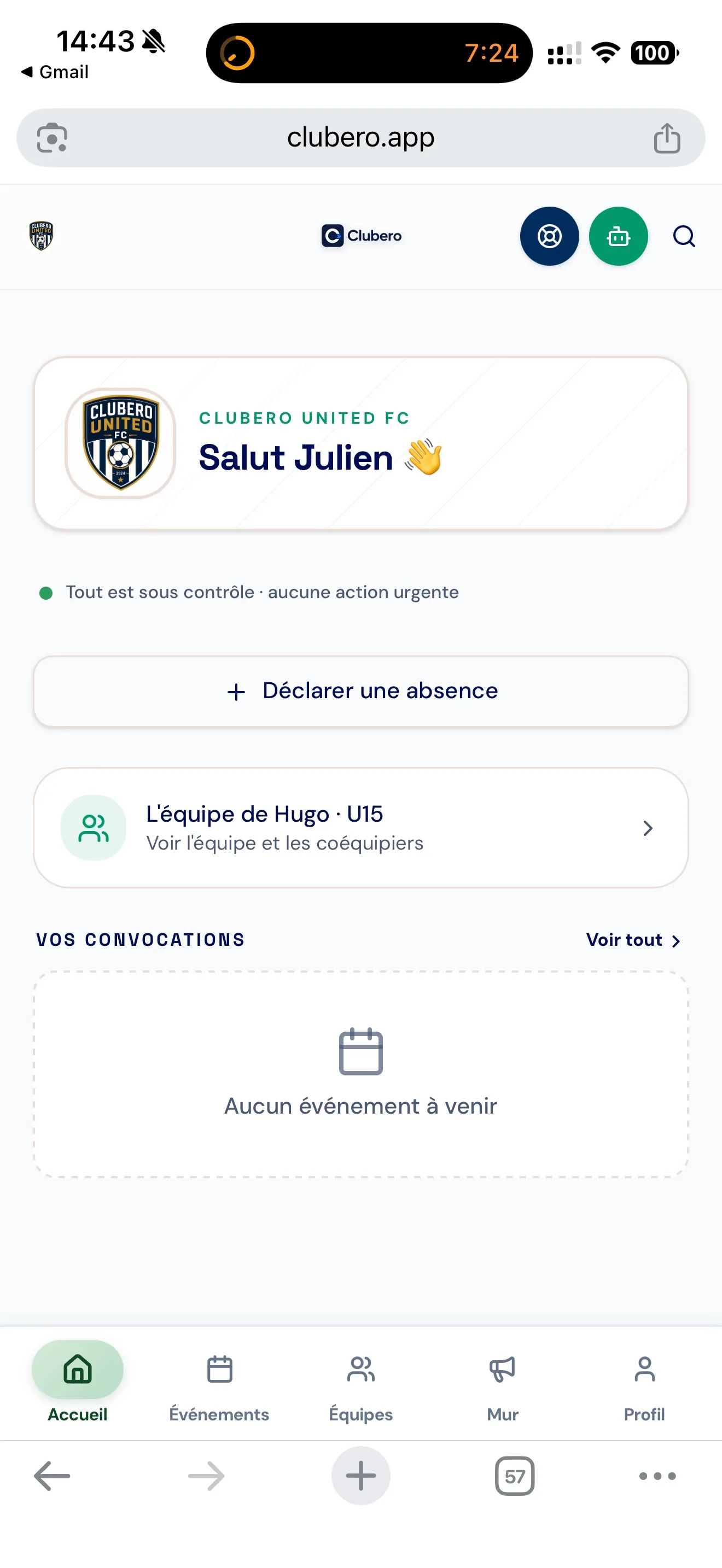
4You land straight on your club's home screen — you're logged in.
 5
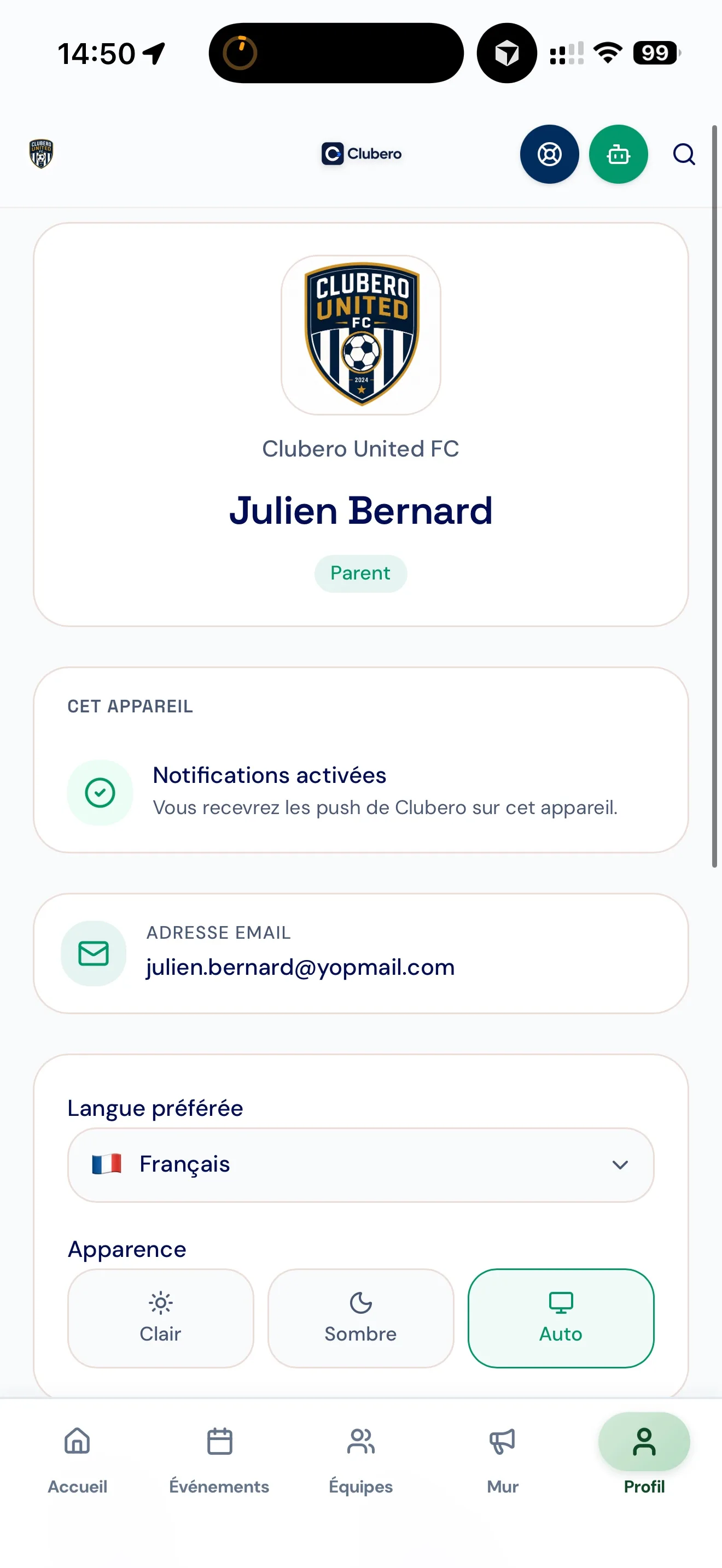
5Open the "Profile" tab: you'll see your info, language and notifications.
 6
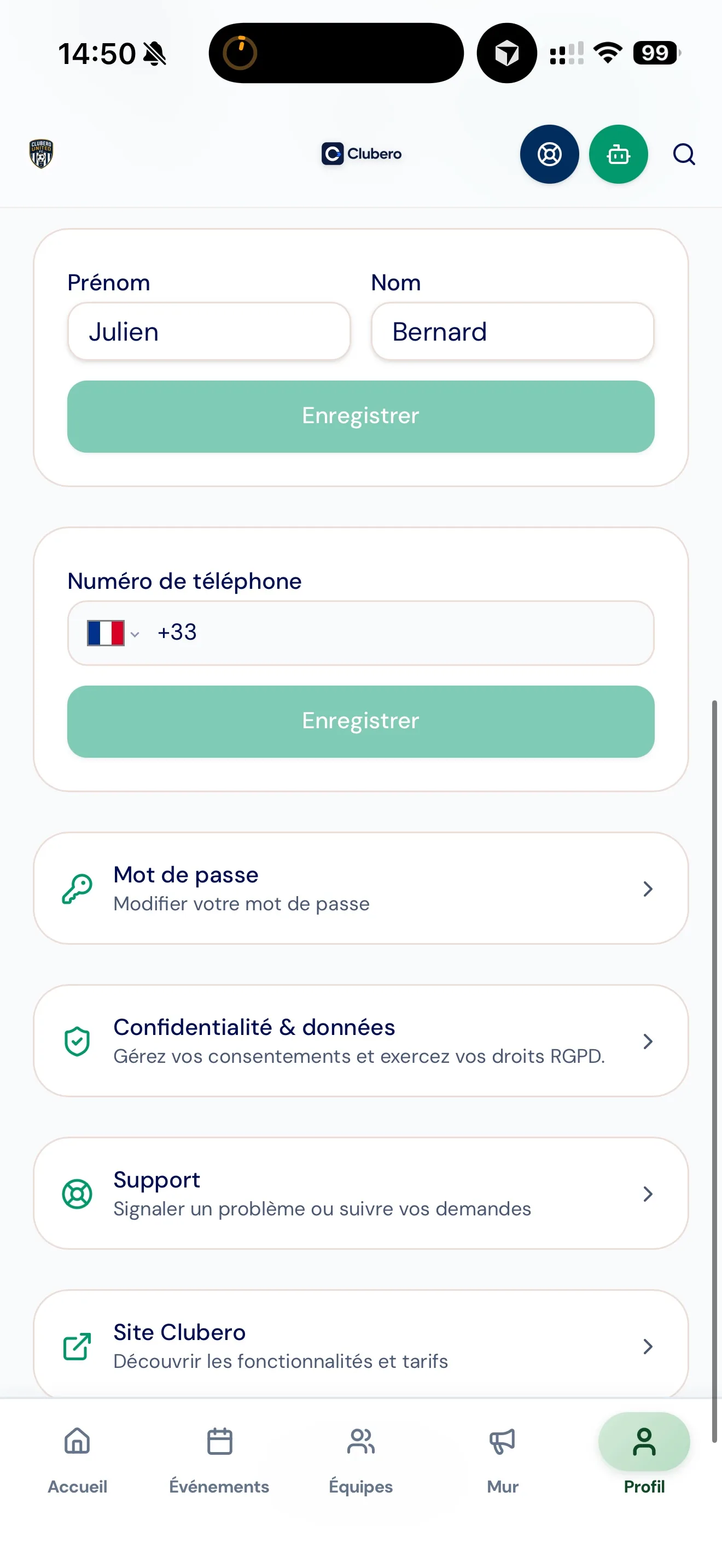
6Check your first name, last name and phone number. If needed, update any relevant information, then tap "Save".
Manage your child's access
Review your child's information and, if you wish, give them access to their own player space. You stay in control.
 1
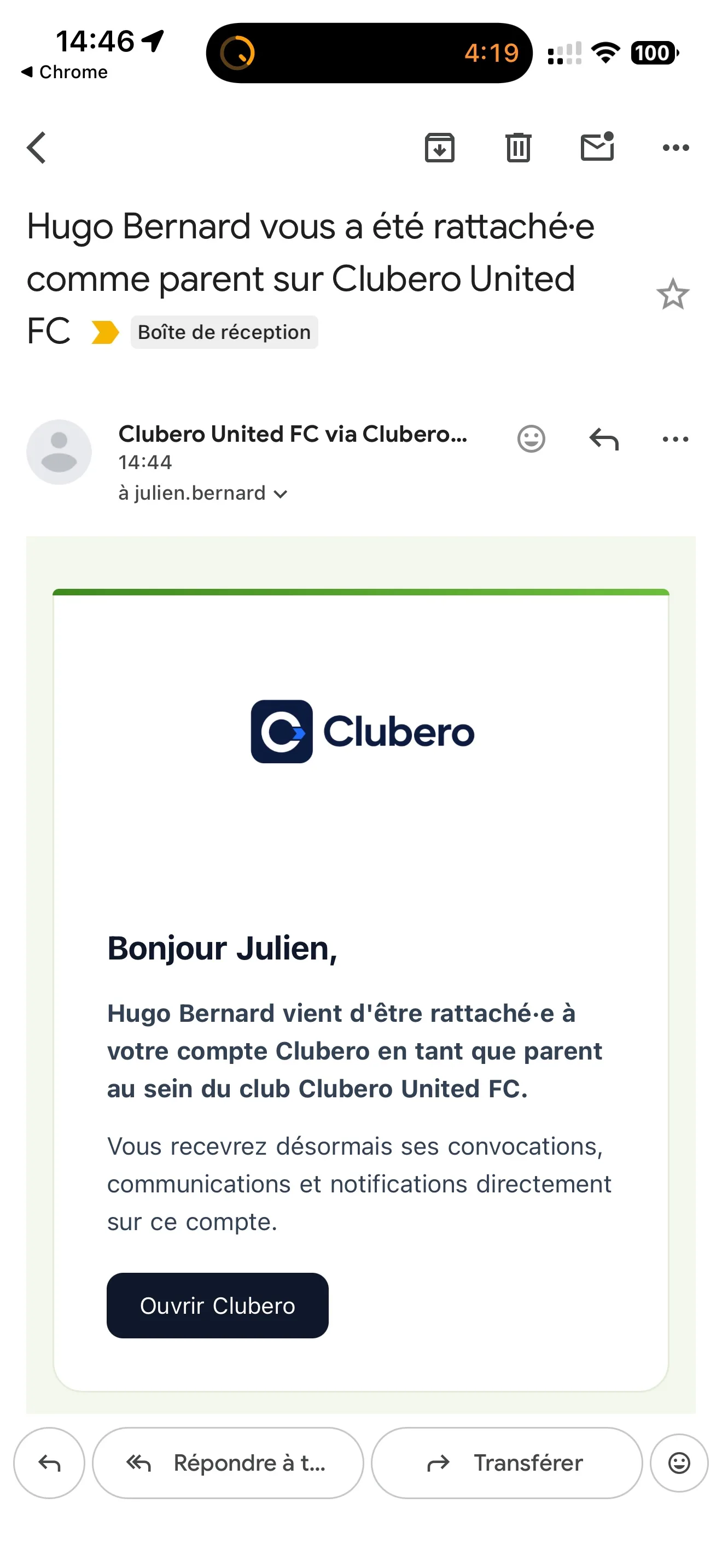
1Receive the email letting you know your child has been linked to your account.
 2
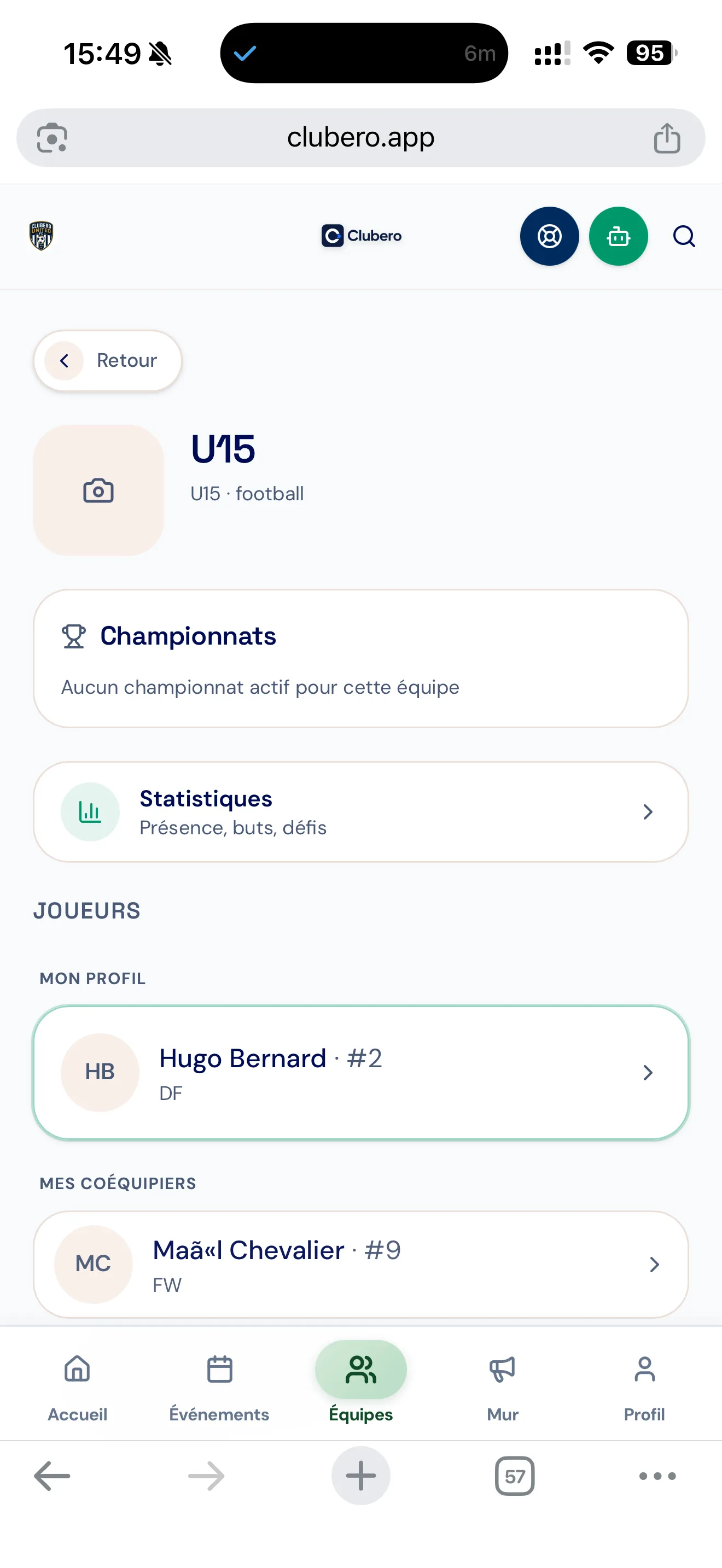
2Open the "Teams" tab and select your child at the top of the list.
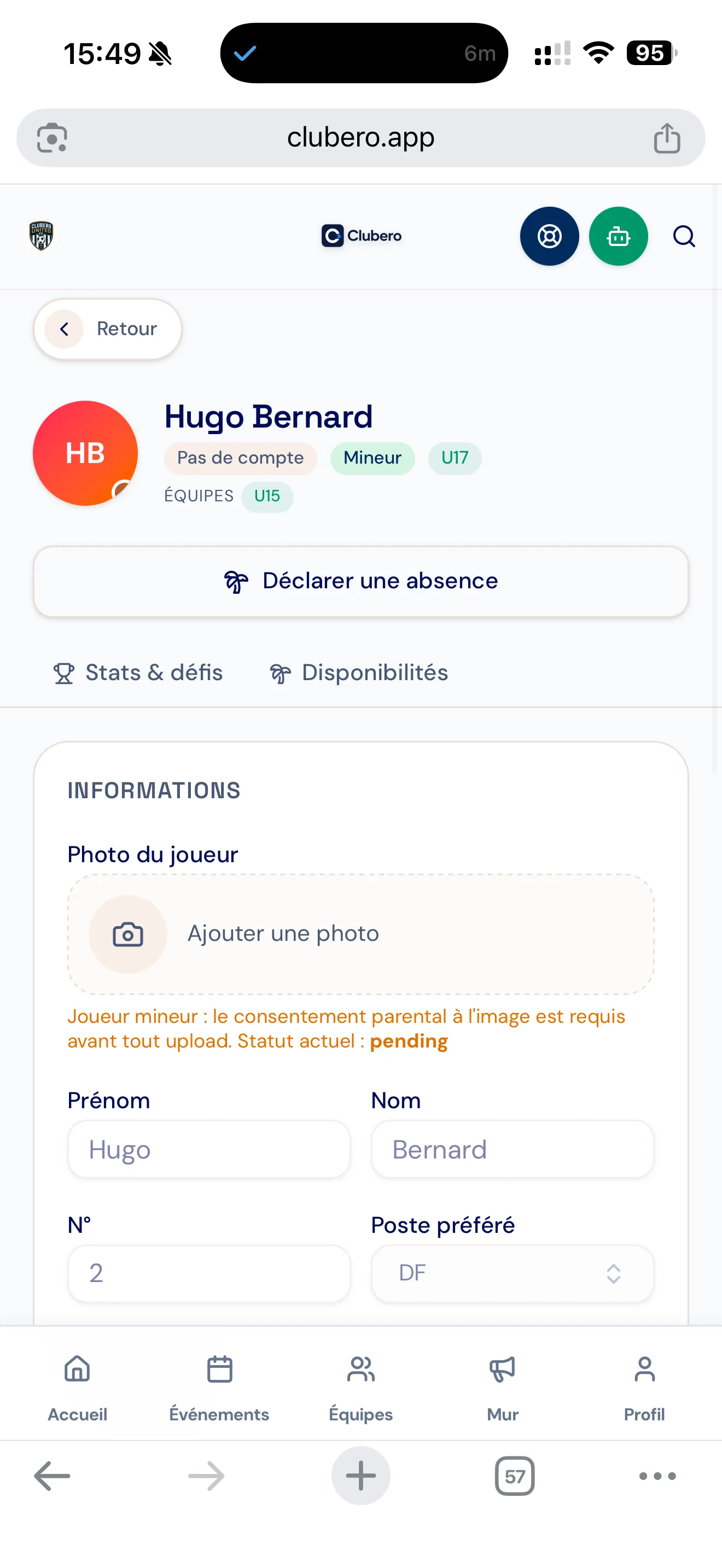 3
3Review their information: first name, last name and position.
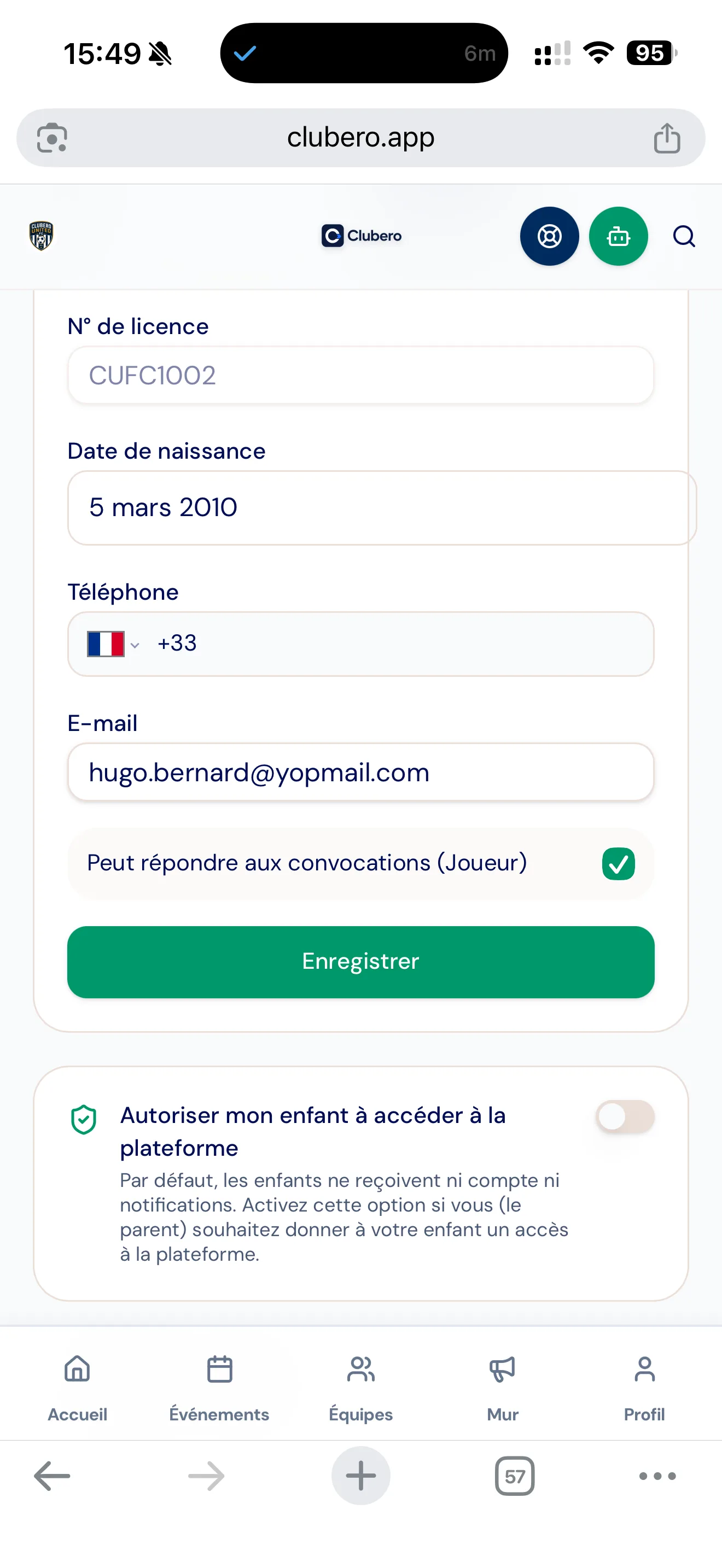 4
4Scroll down to see their licence number, phone and email.
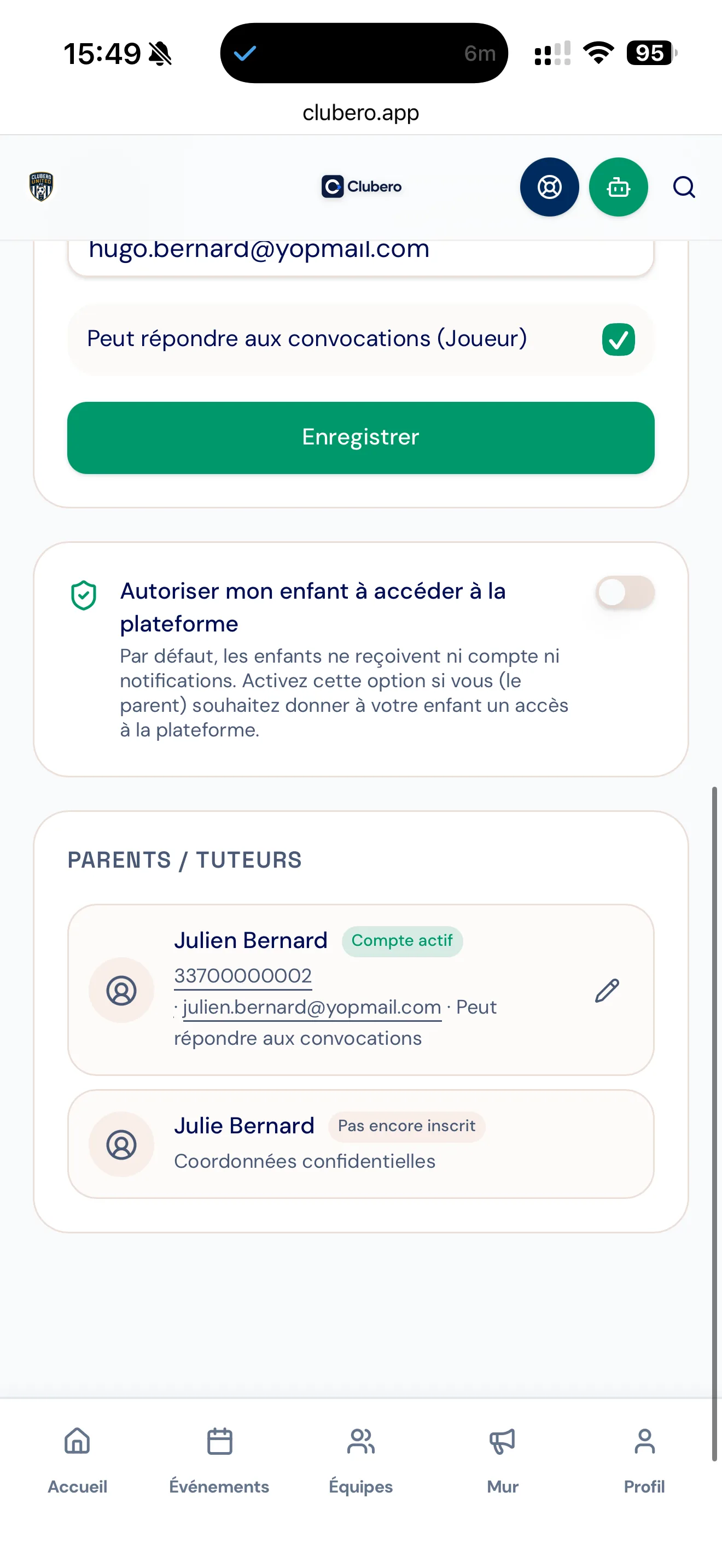 5
5Check the platform access permission and the parents' details.
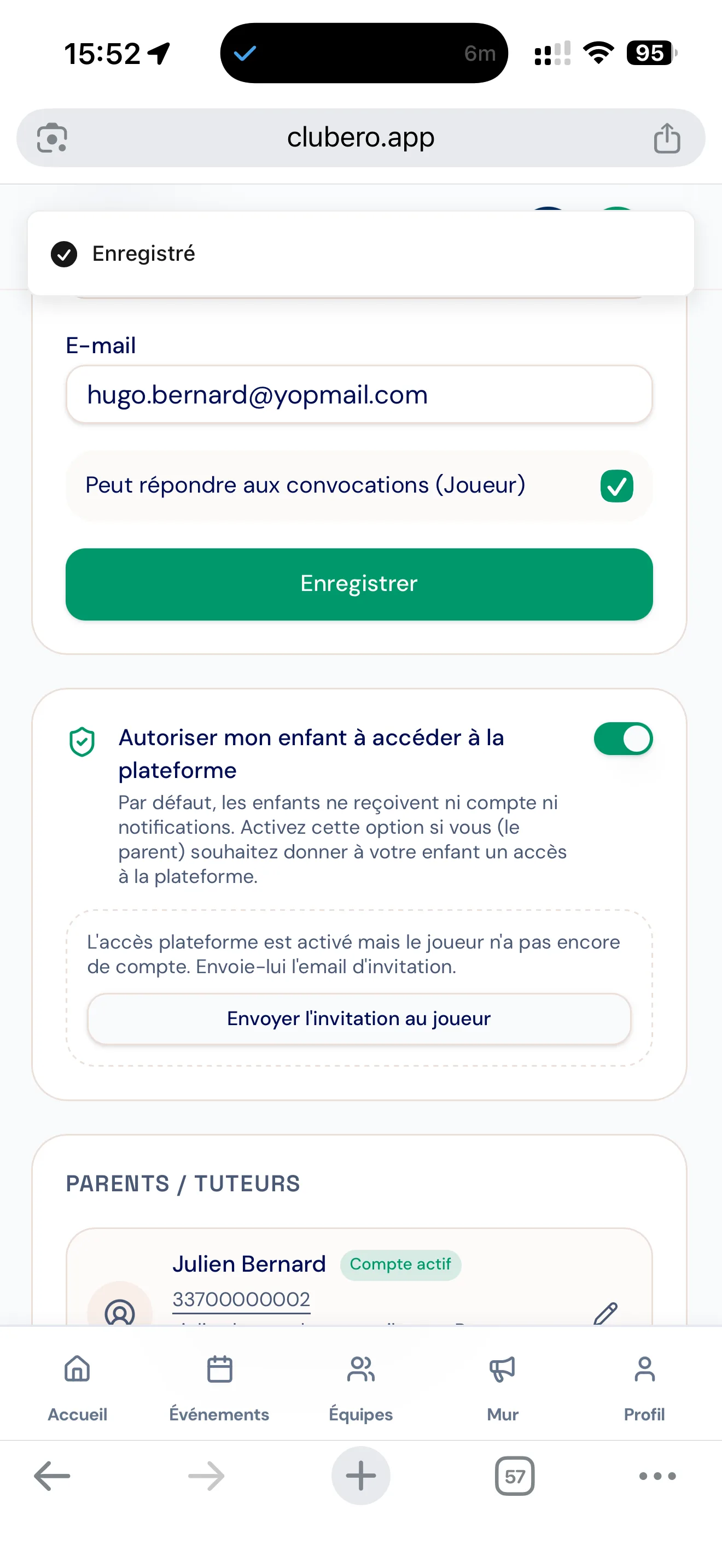 6
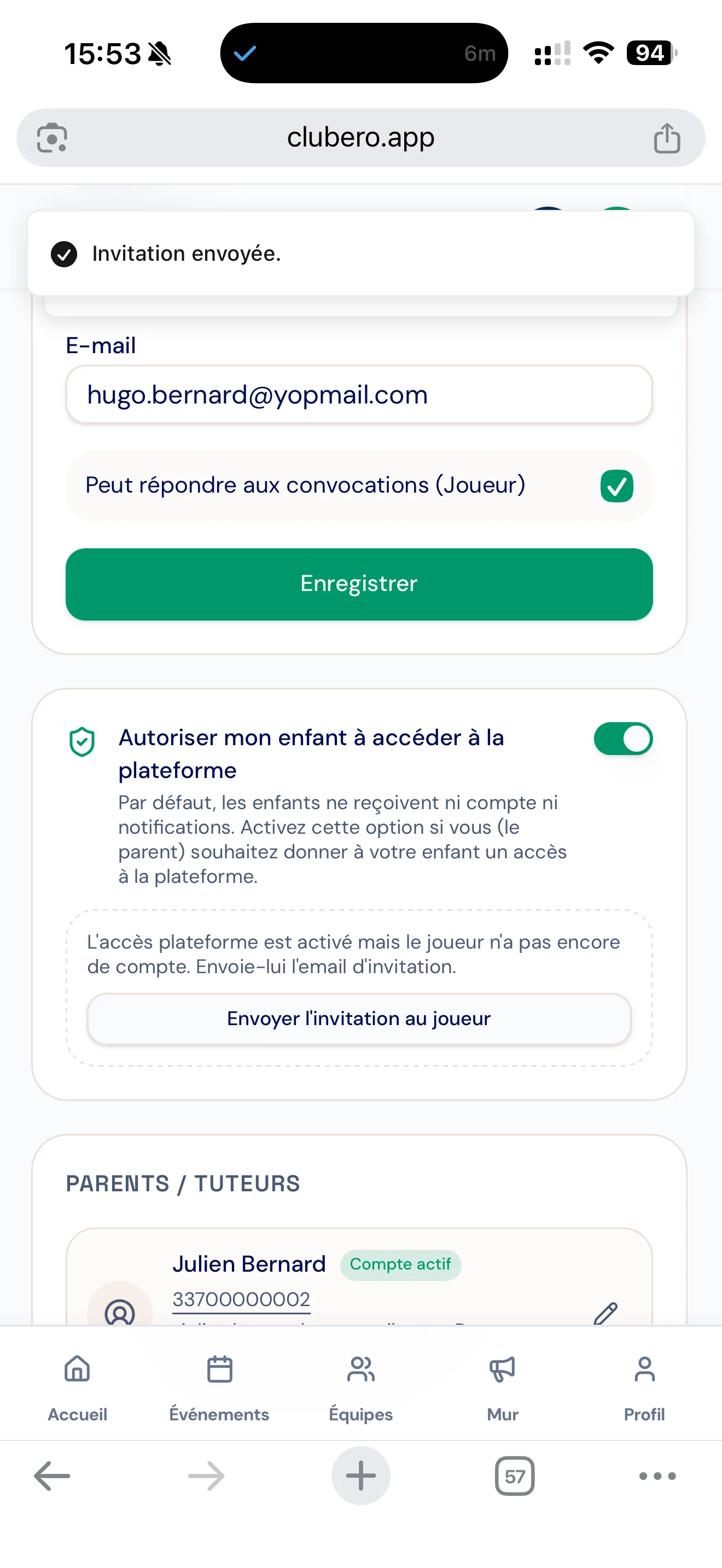
6Turn on your child's platform access with the toggle.
 7
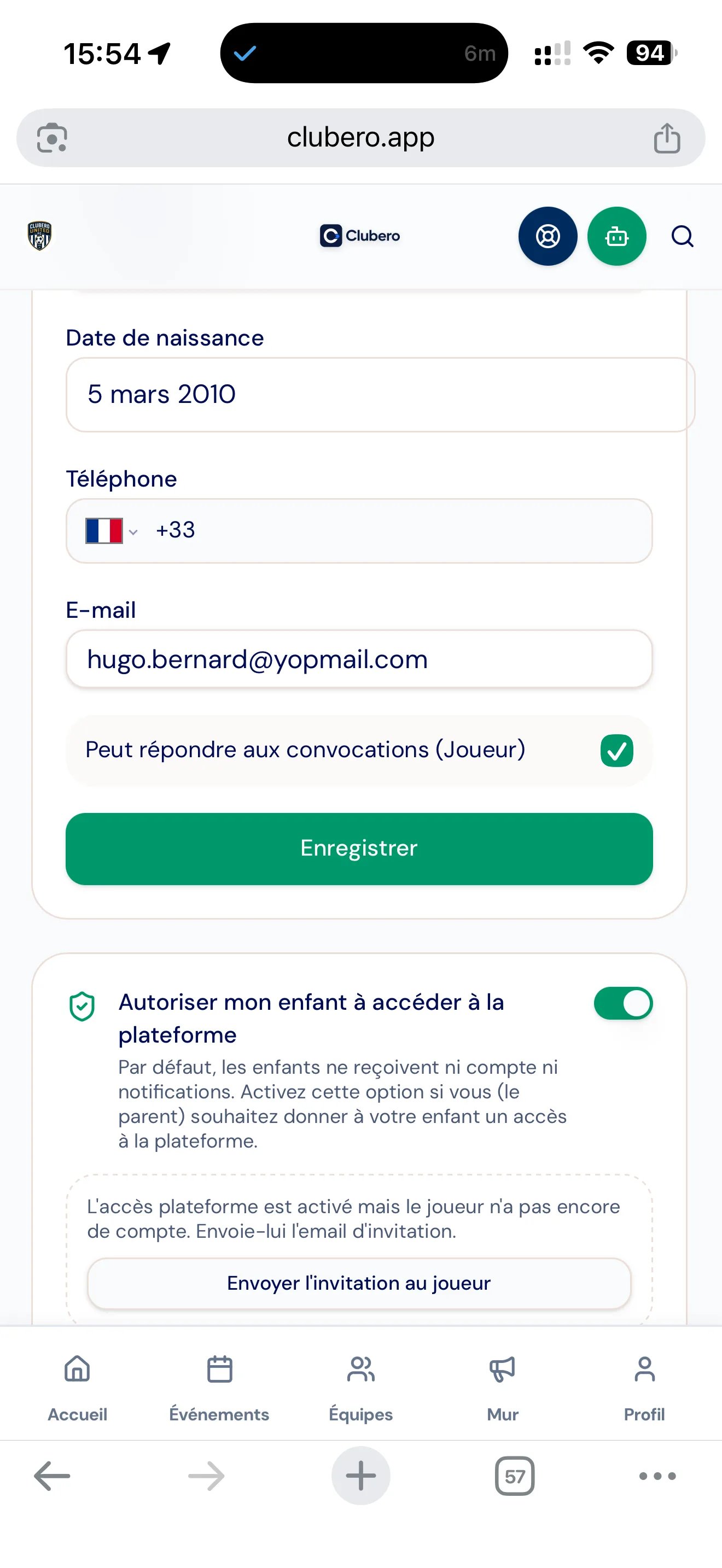
7Send the invitation to the player: your child needs their own email address. They'll get an email to create a password and access their team's data.
 8
8Tick "Can respond to call-ups (Player)" to let them respond themselves — otherwise, only parents can respond to call-ups.
See events and respond to a call-up
Get call-ups by email, notification or in the app, and respond for your child in one tap.
 1
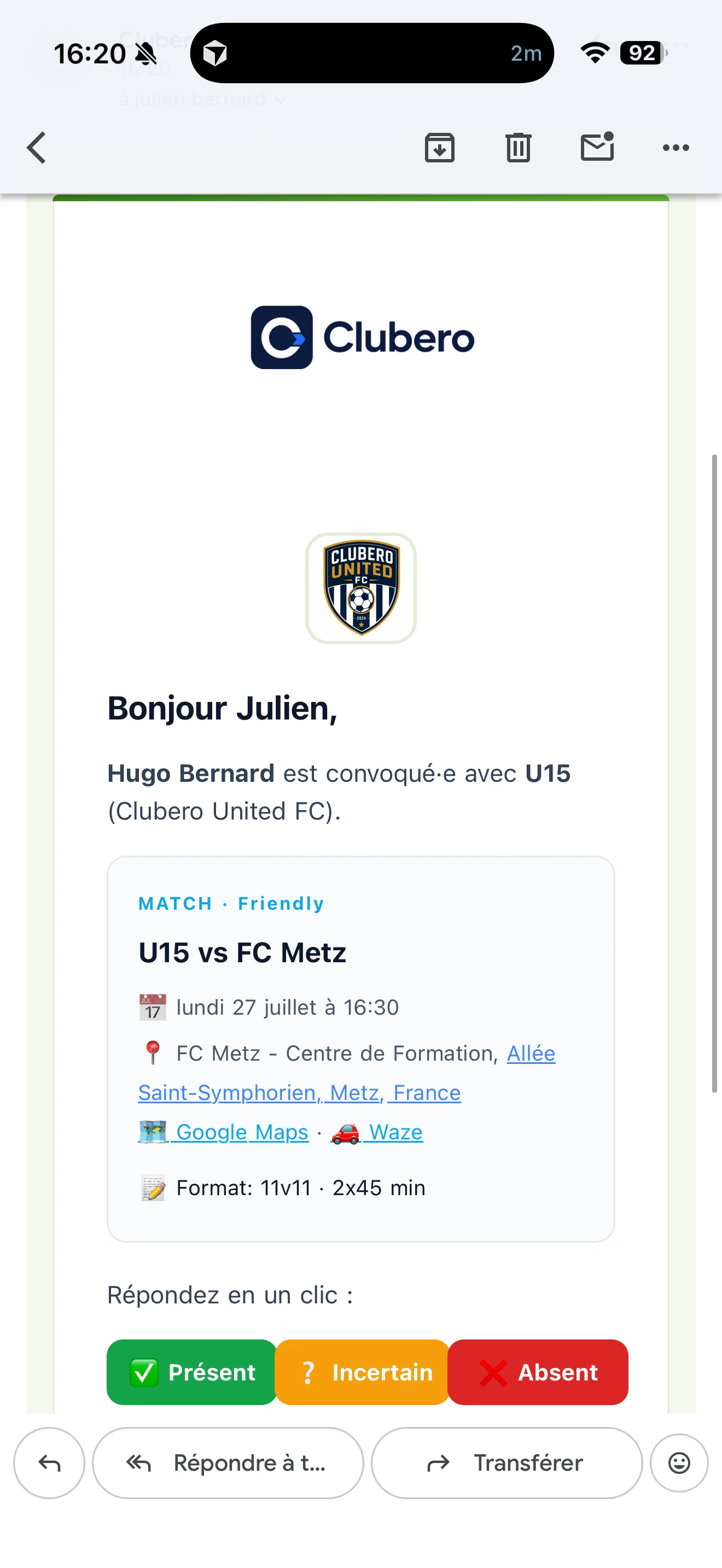
1Receive the call-up by email: confirm attendance (Present / Uncertain / Absent) directly from the email.
 2
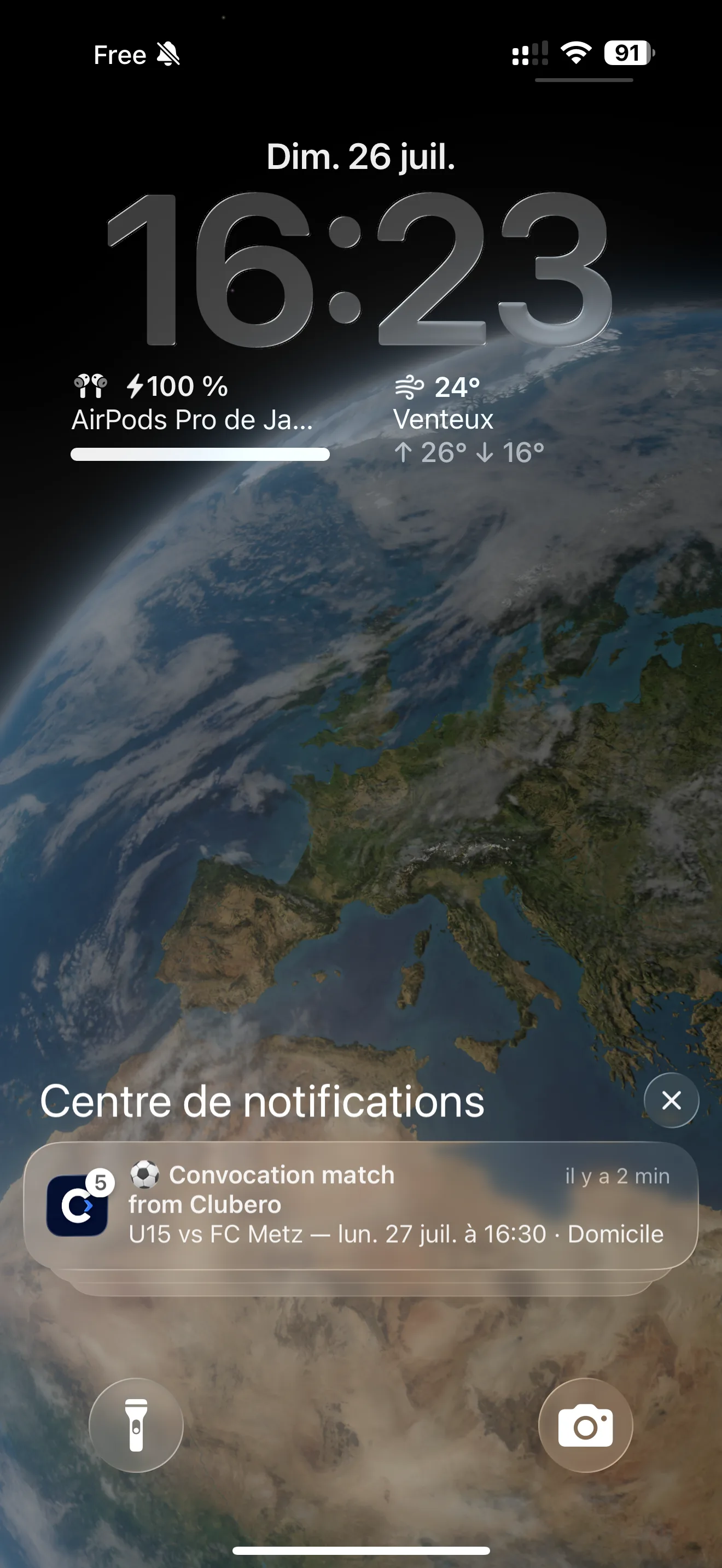
2You also get a push notification that takes you straight into the app.
 3
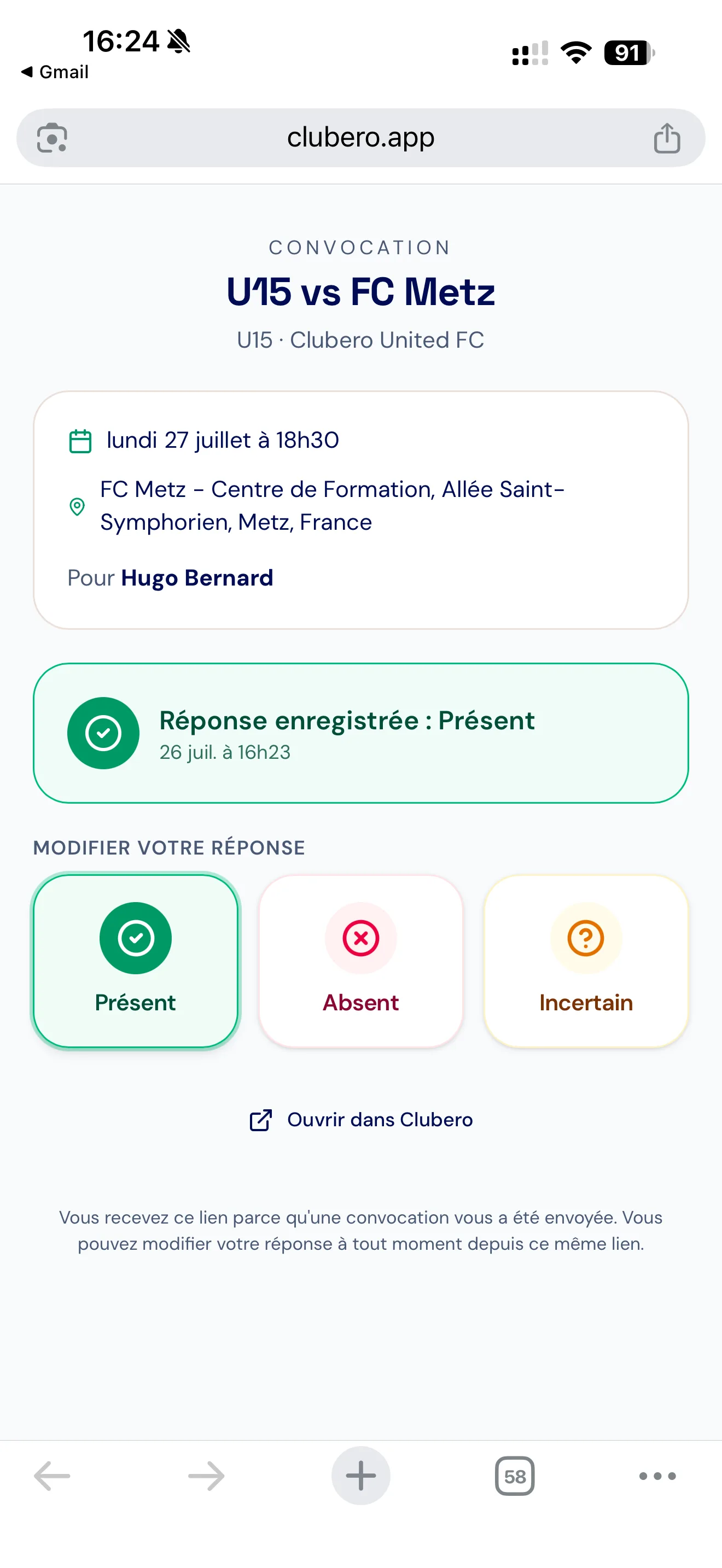
3Without logging in to the app, the page opened from the email confirms your choice. Your response is sent to the coach immediately, helping them prepare the event with confidence.
 4
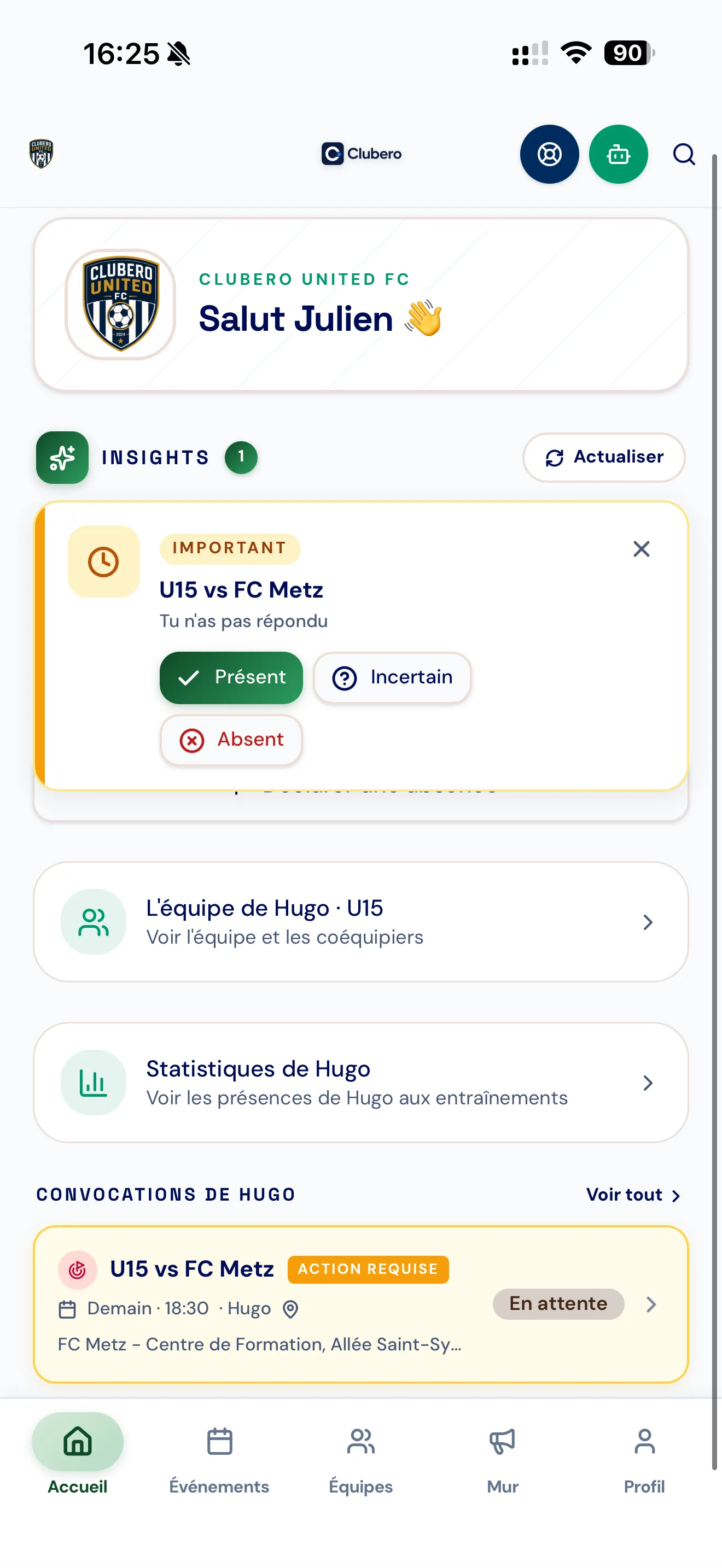
4On the home screen, the "Insights" card reminds you of actions to take. The home screen also shows up to the next three events your child has been called up for.
 5
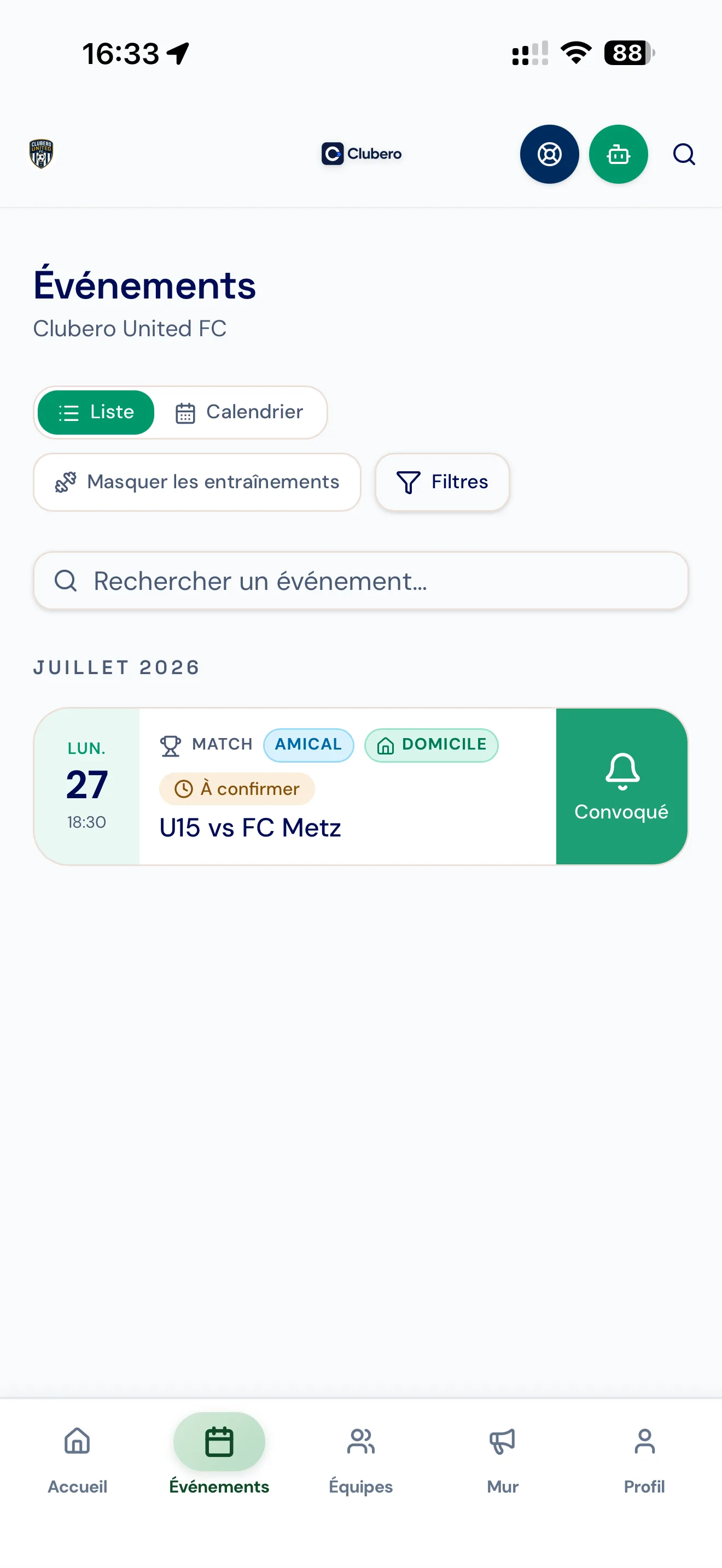
5The "Events" page contains all upcoming events scheduled for the team. A green badge identifies those your child has been called up for; use "Filters" to show only the events you want.
 6
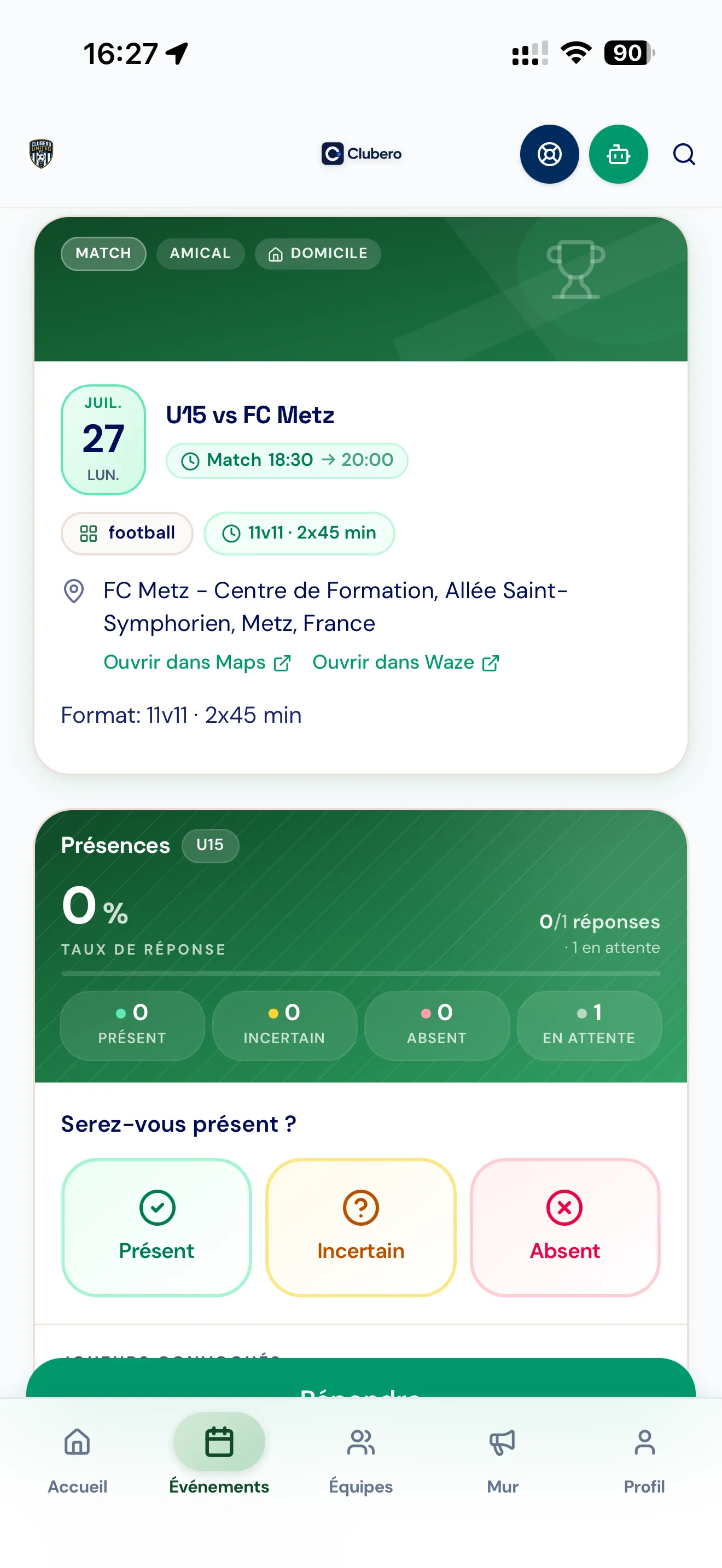
6Open the event details: match info and your response (Present / Uncertain / Absent).
 7
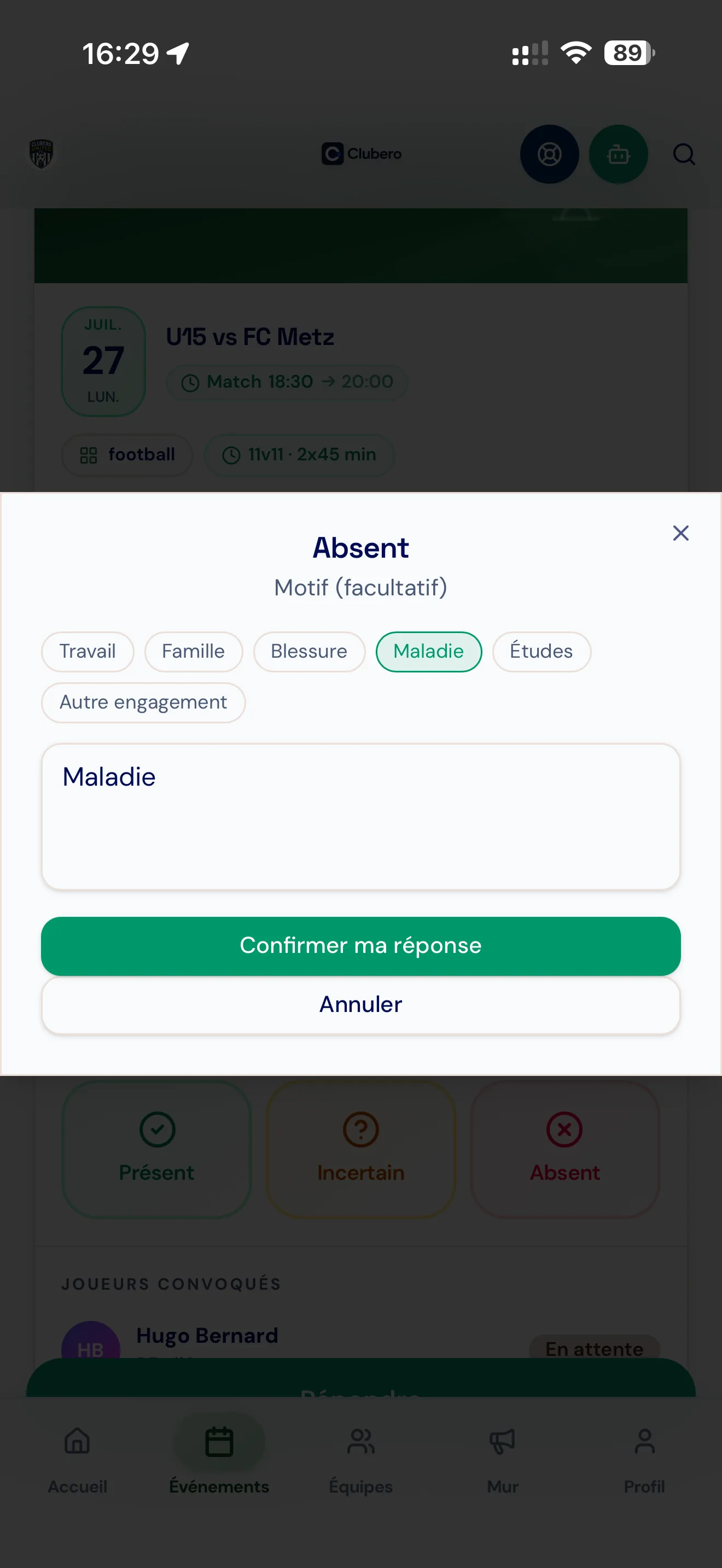
7For an absence or if unsure, add a reason (preset or free text) sent to the coach.
 8
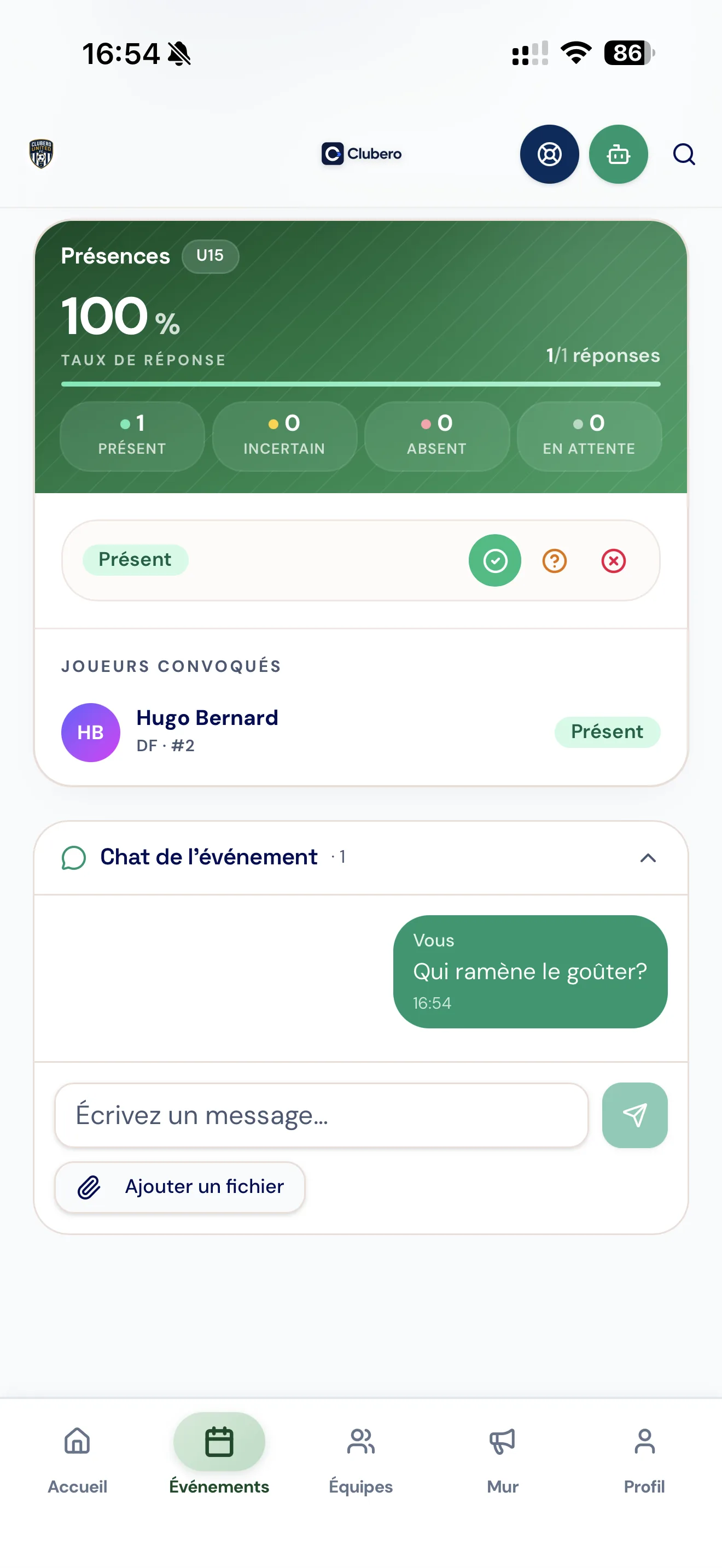
8Each event has its own chat: authorised parents, players and coaches can clarify anything relating to the match. With every new message, authorised participants receive a push notification.
Set up notifications
Turn on push notifications to receive call-ups, reminders, cancellations, rescheduled events and new Wall posts, according to your club's settings.
 1
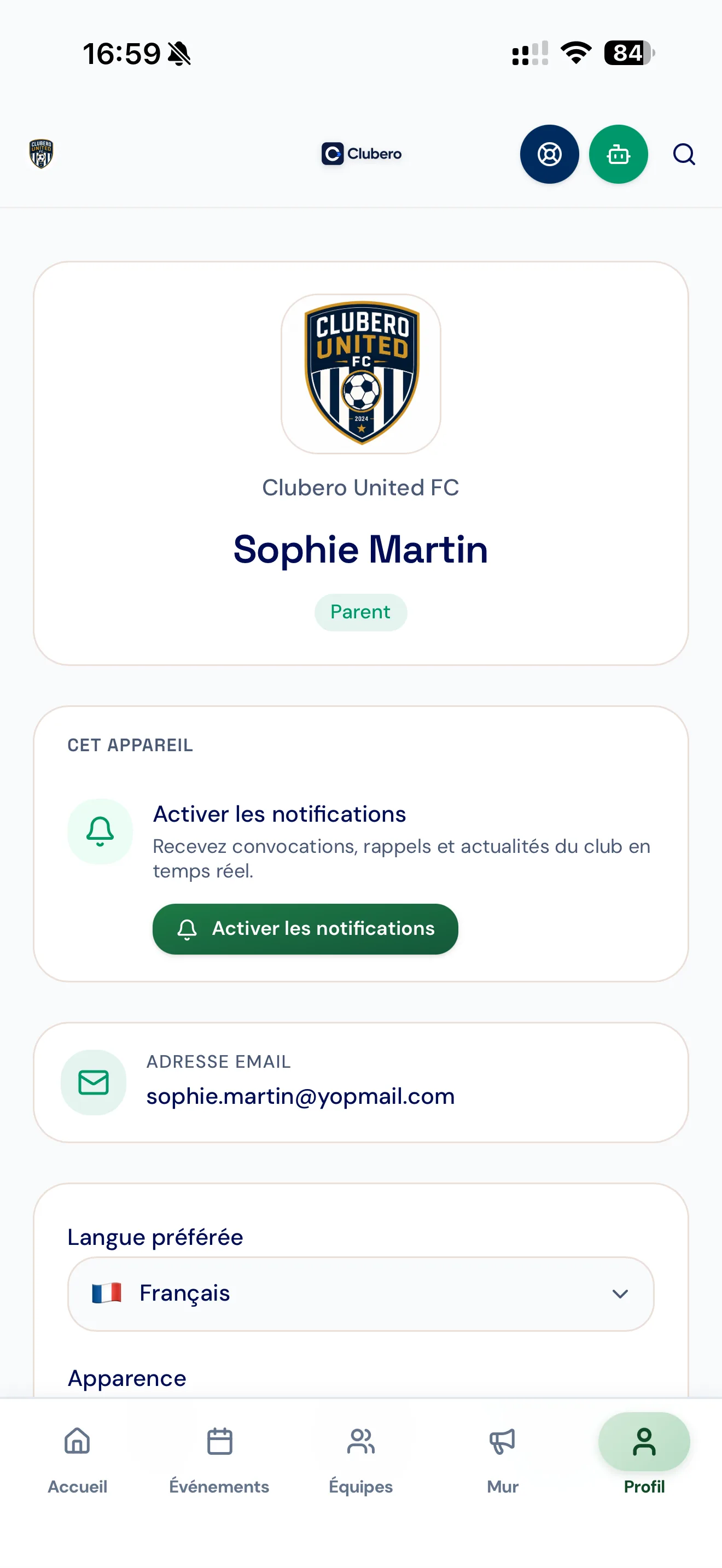
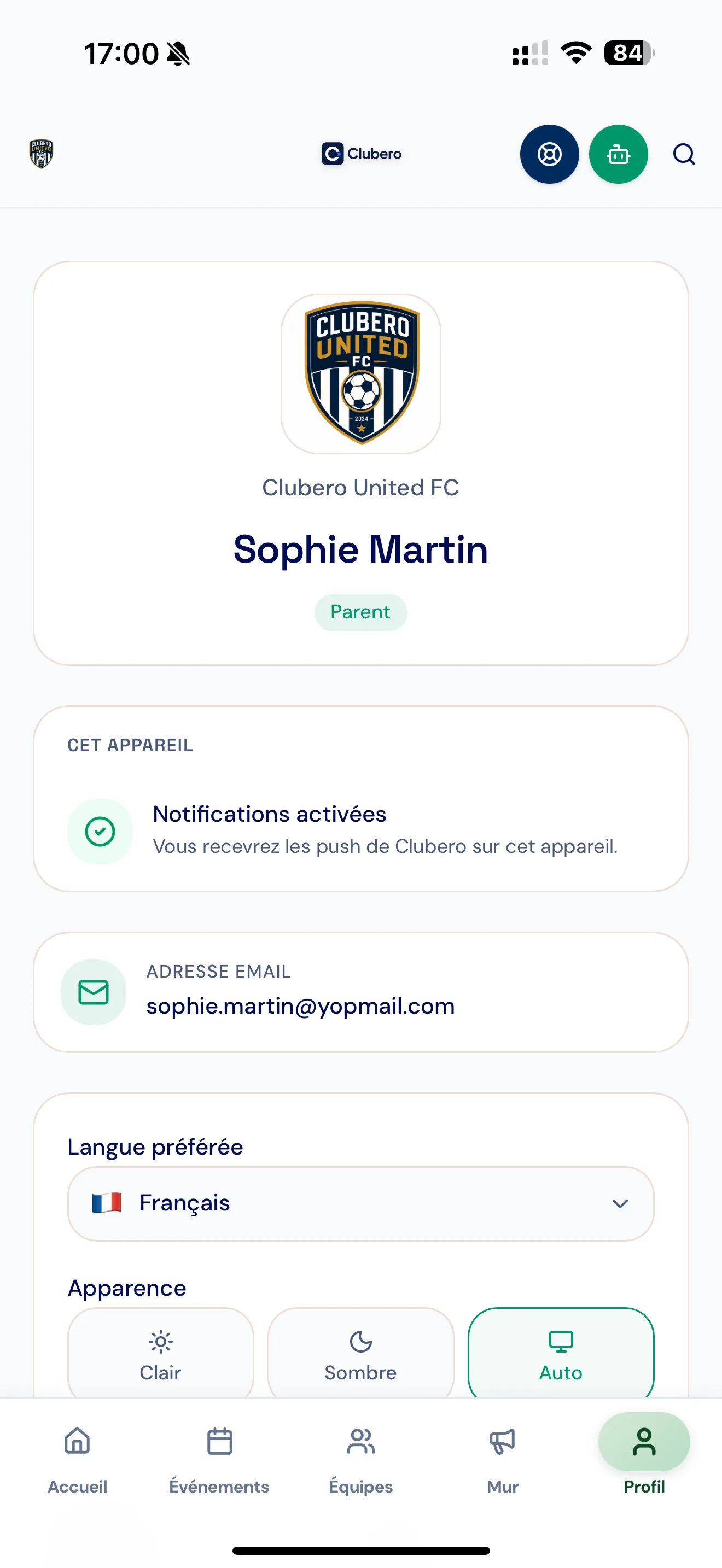
1In the "Profile" menu, open the notifications section to enable them.
 2
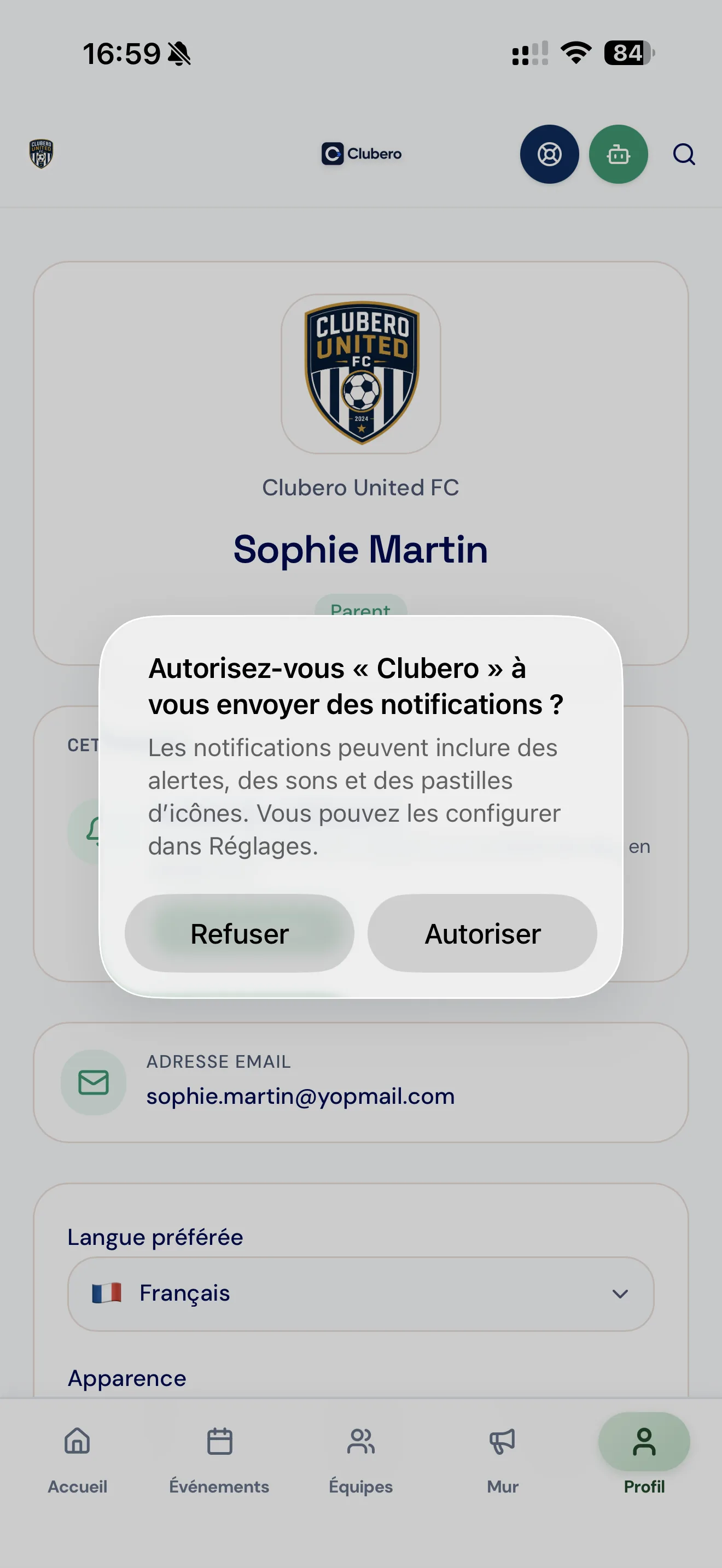
2Tap "Enable": a window opens — allow notifications.
 3
3Notifications show as enabled: push will now be sent to this phone.
Report an absence
Let the staff know ahead of time when your child can't make it: the coach is notified and the schedule is updated.
 1
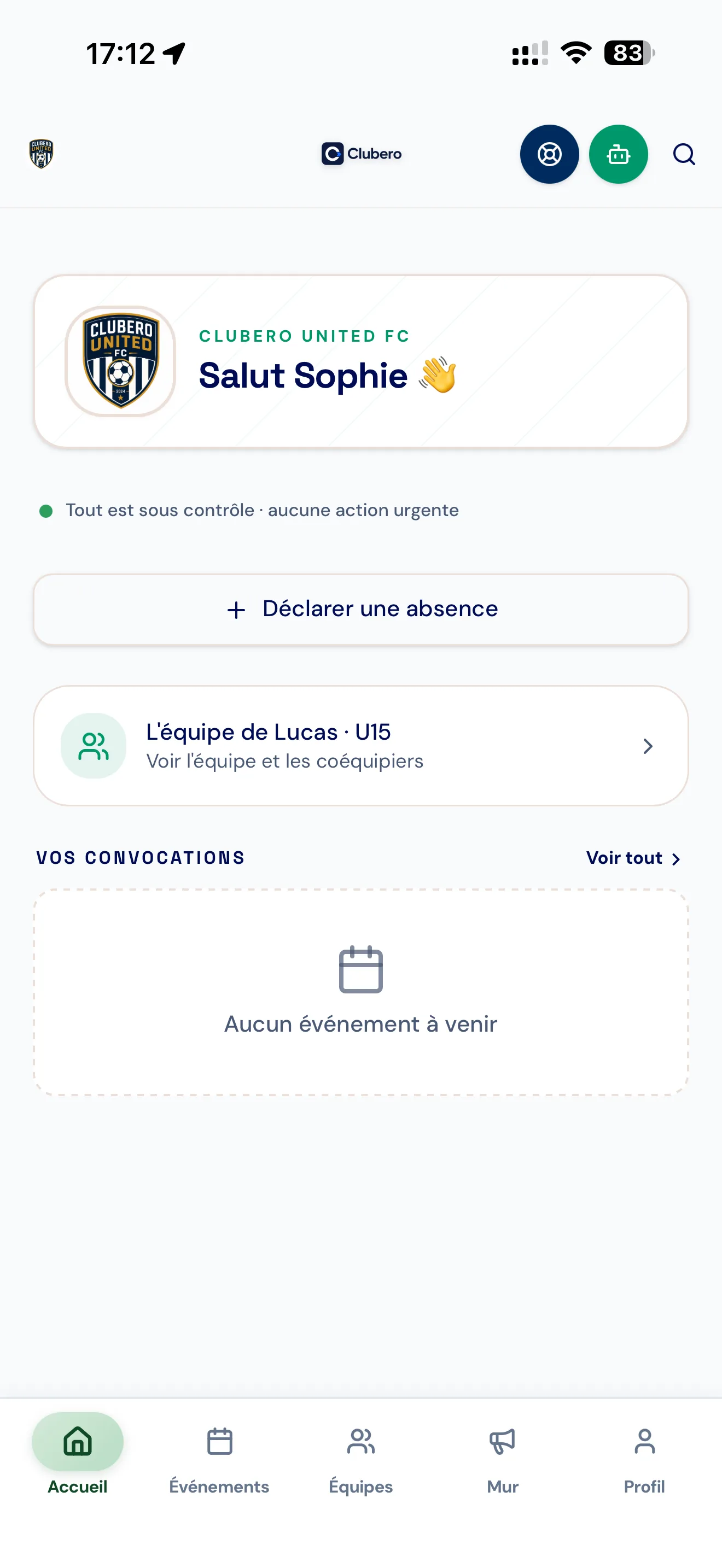
1From the app home, tap "Report an absence".
 2
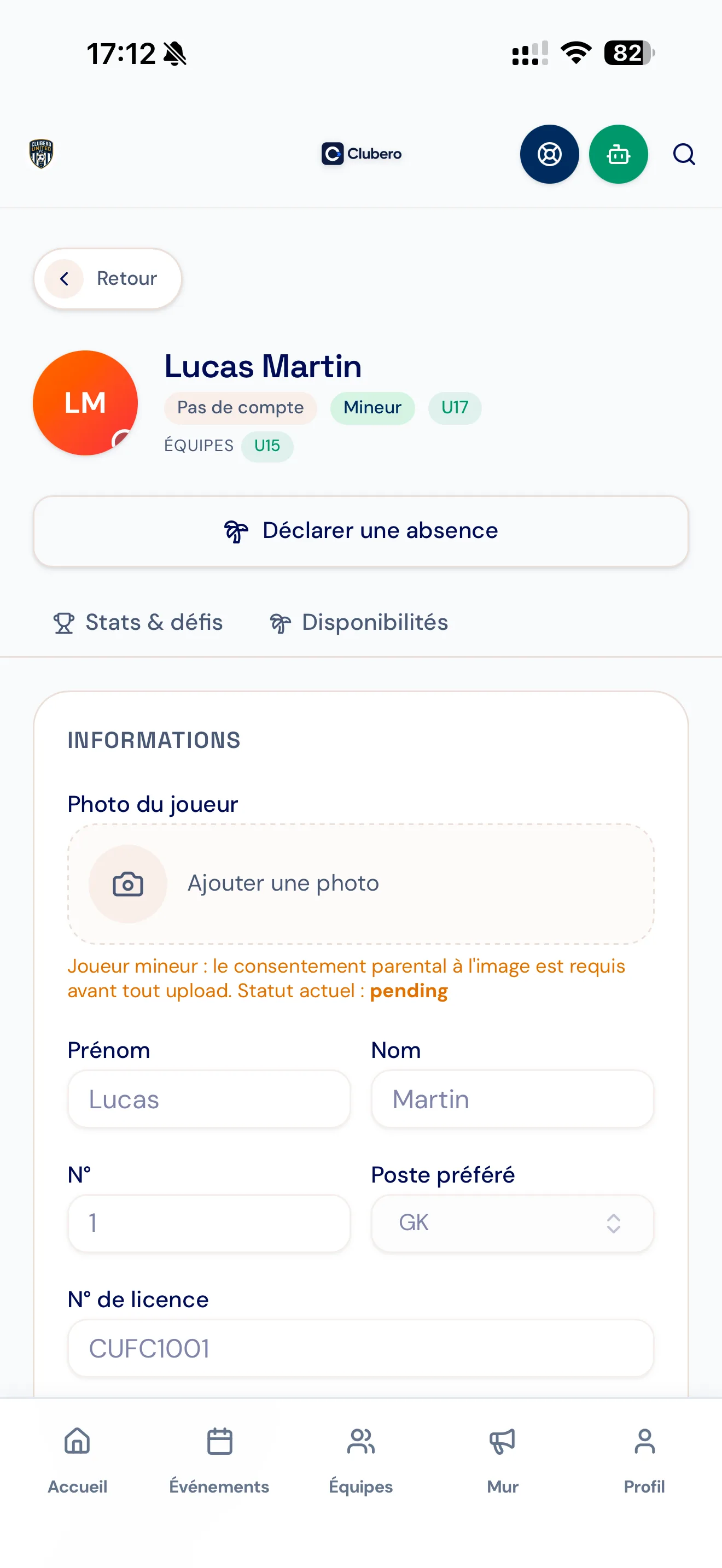
2Another way: open "Teams" then your child's profile.
 3
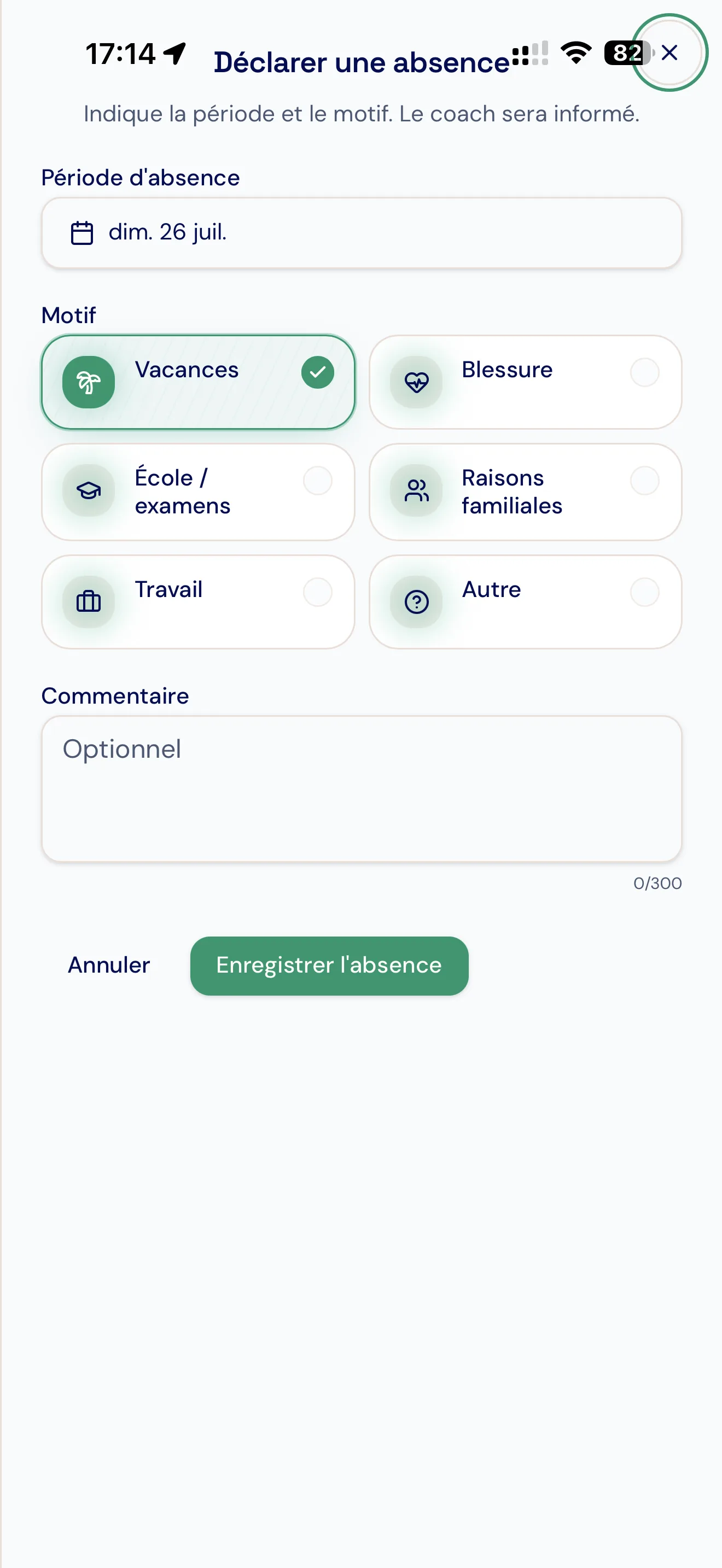
3Open the report-an-absence screen.
 4
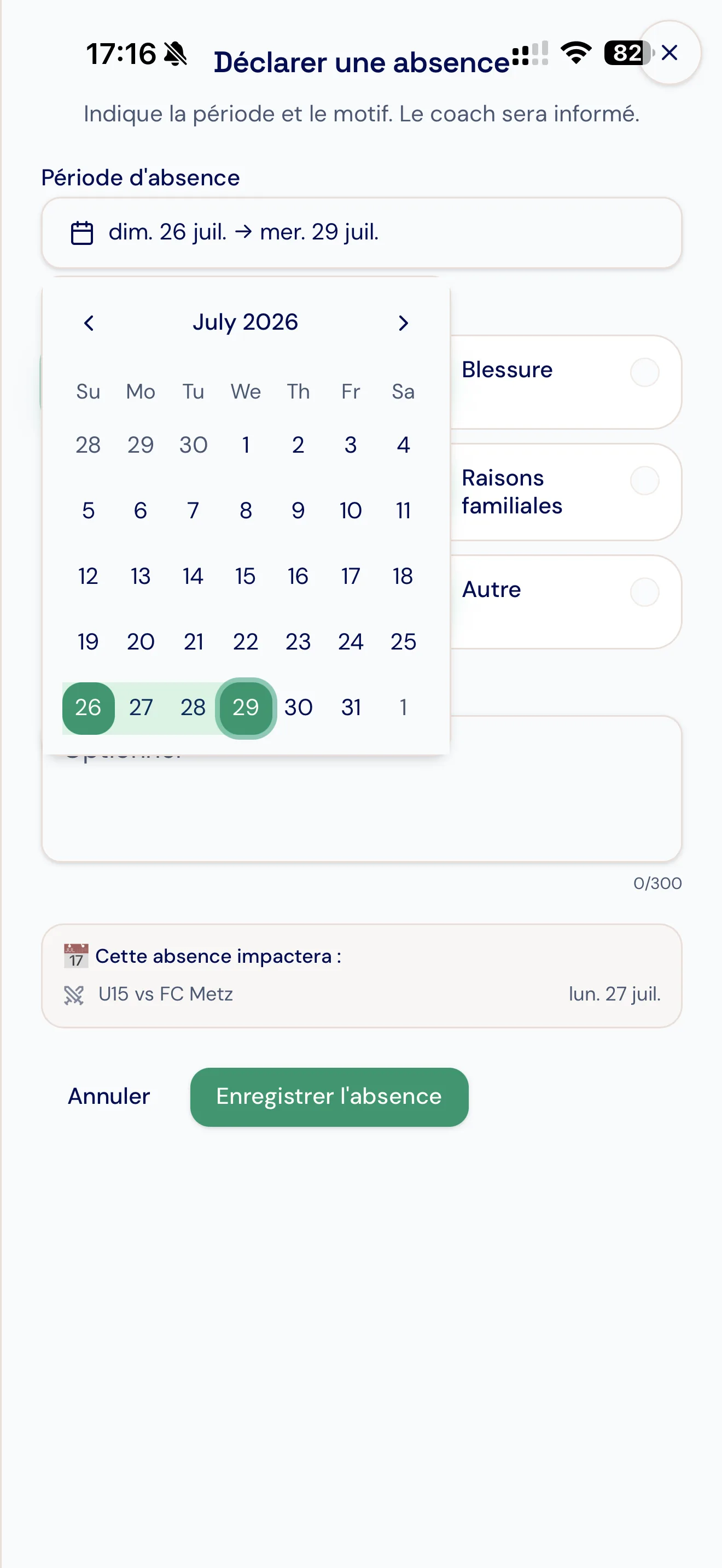
4Select the date range concerned.
 5
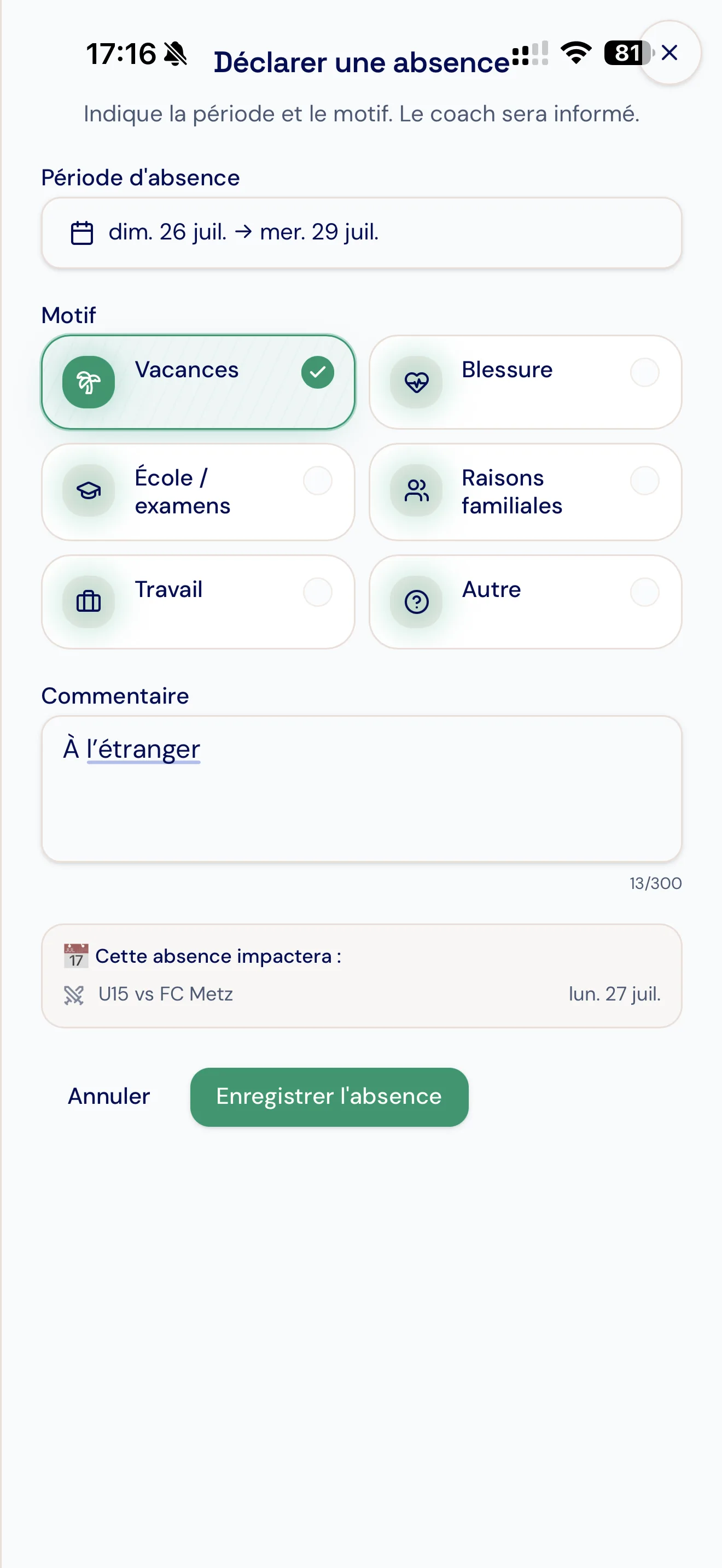
5Choose the reason, add a comment if needed, then save: the coach is notified and the team schedule is updated.
 6
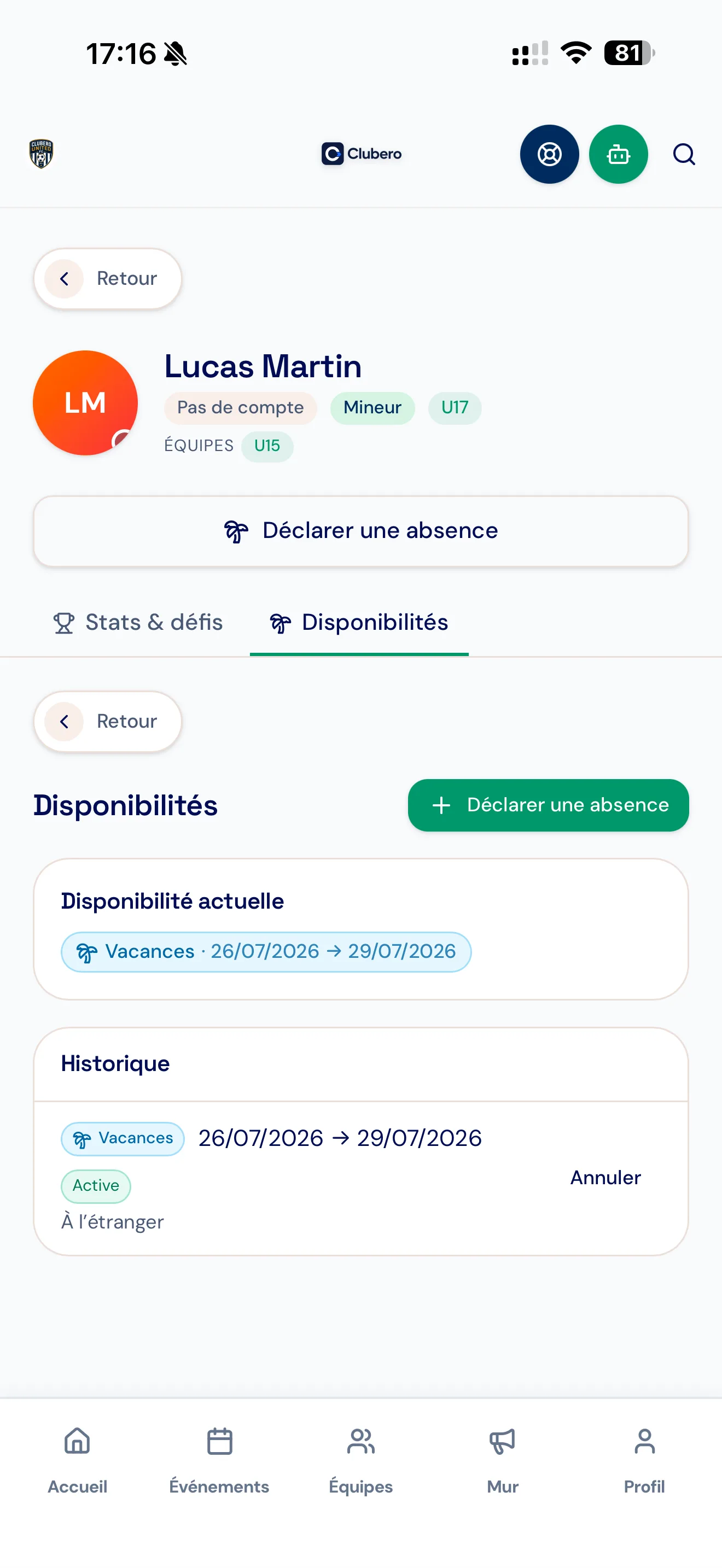
6The absence appears in the "Availability" tab of your child's profile.
 7
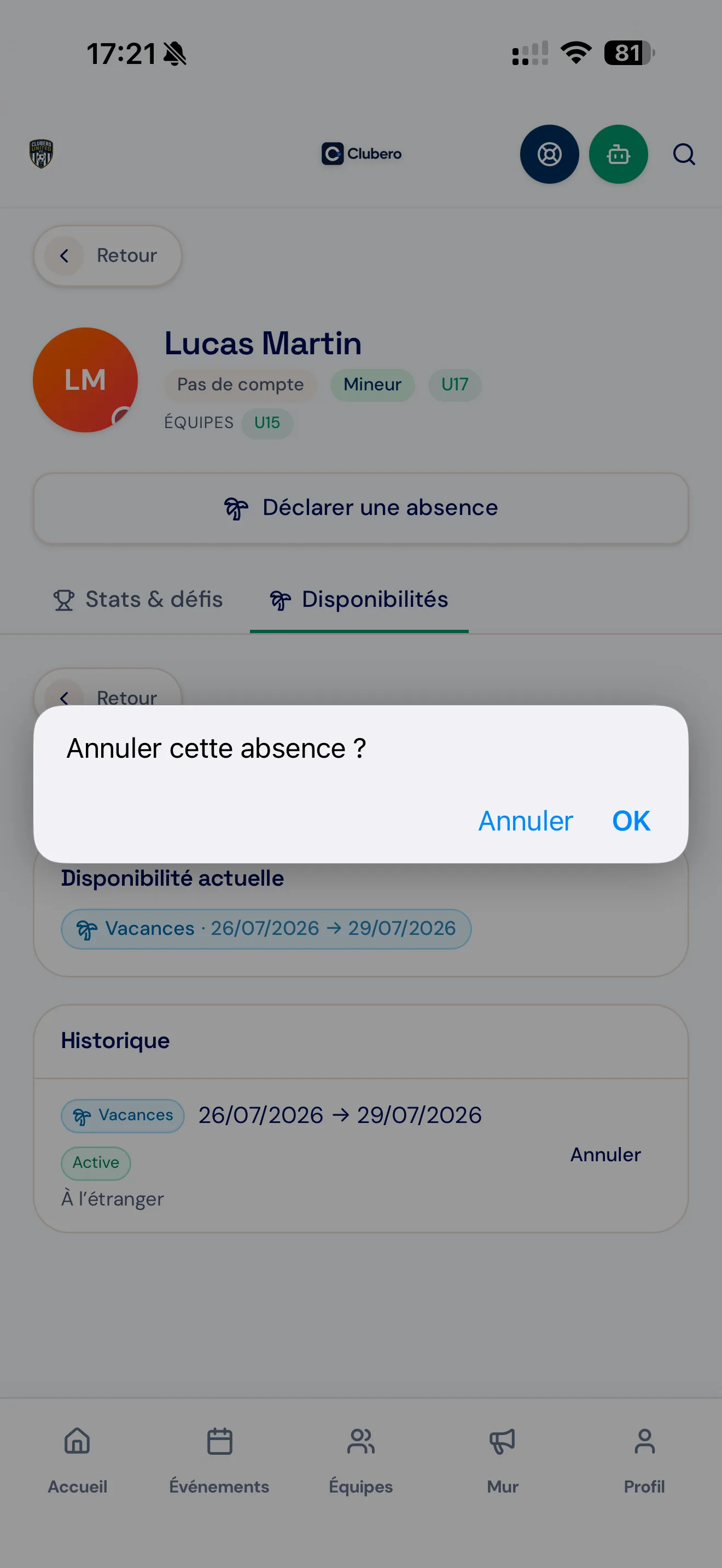
7You can cancel it via "Cancel" in the history section.
Organise carpooling
For matches and trainings, book a seat or request a ride directly from the event.
 1
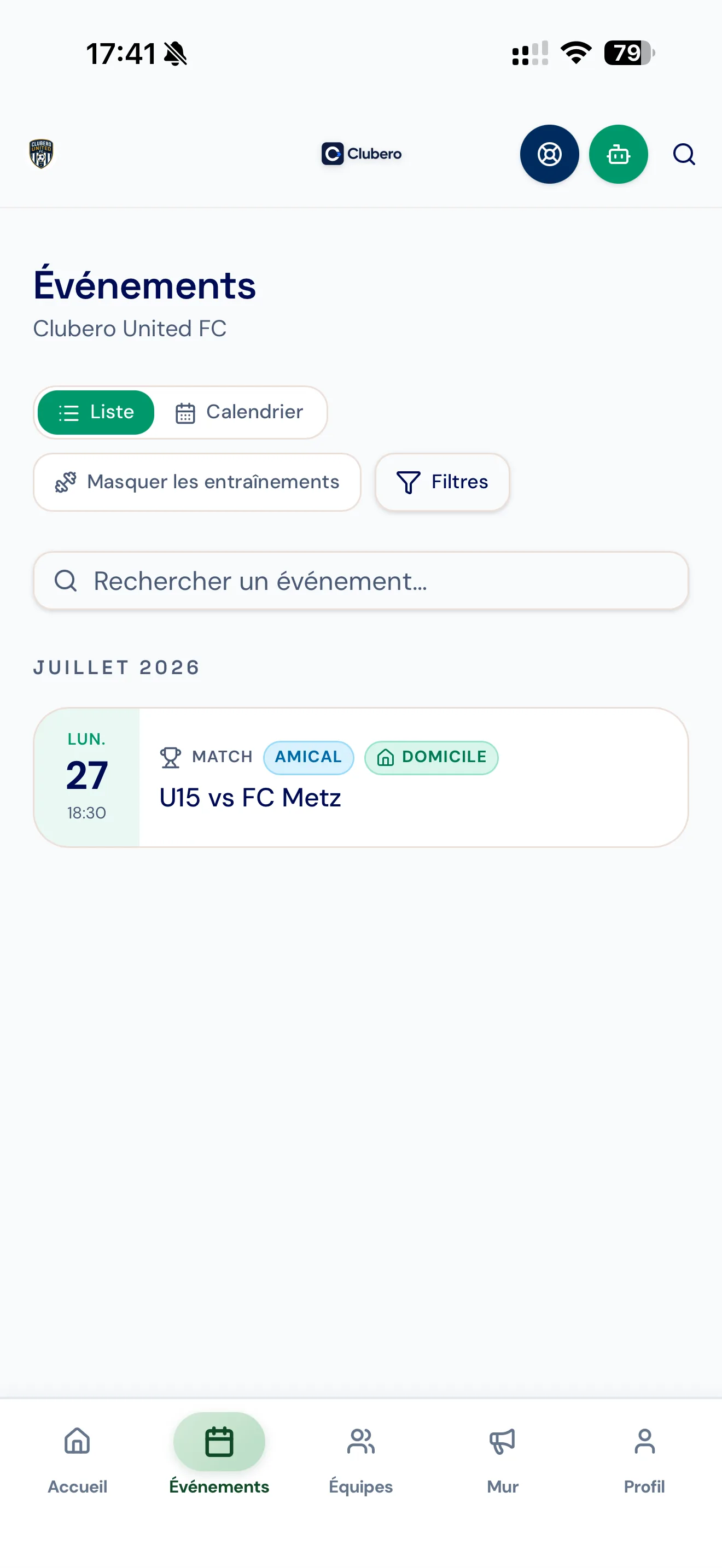
1Open a match or a training where carpooling is enabled (the coach turns it on event by event).
 2
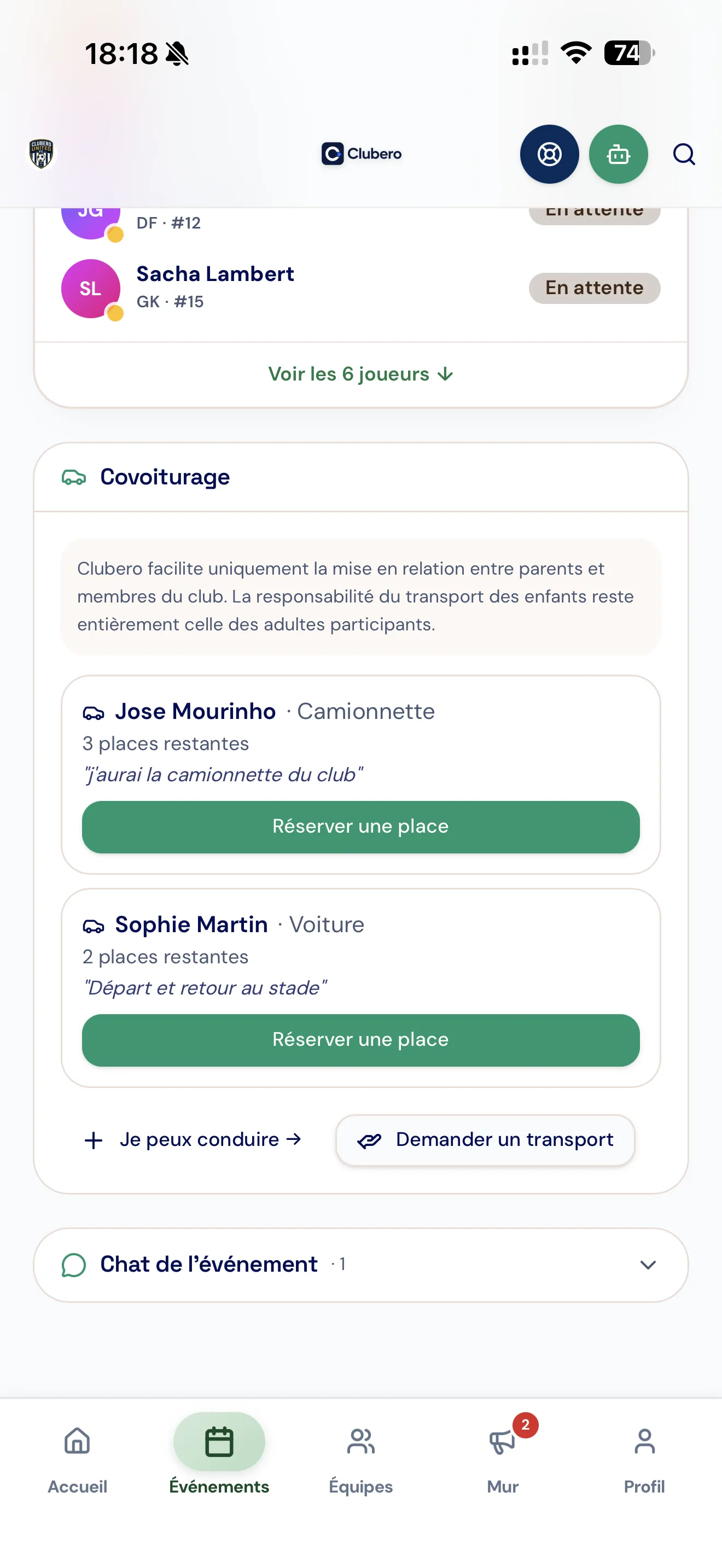
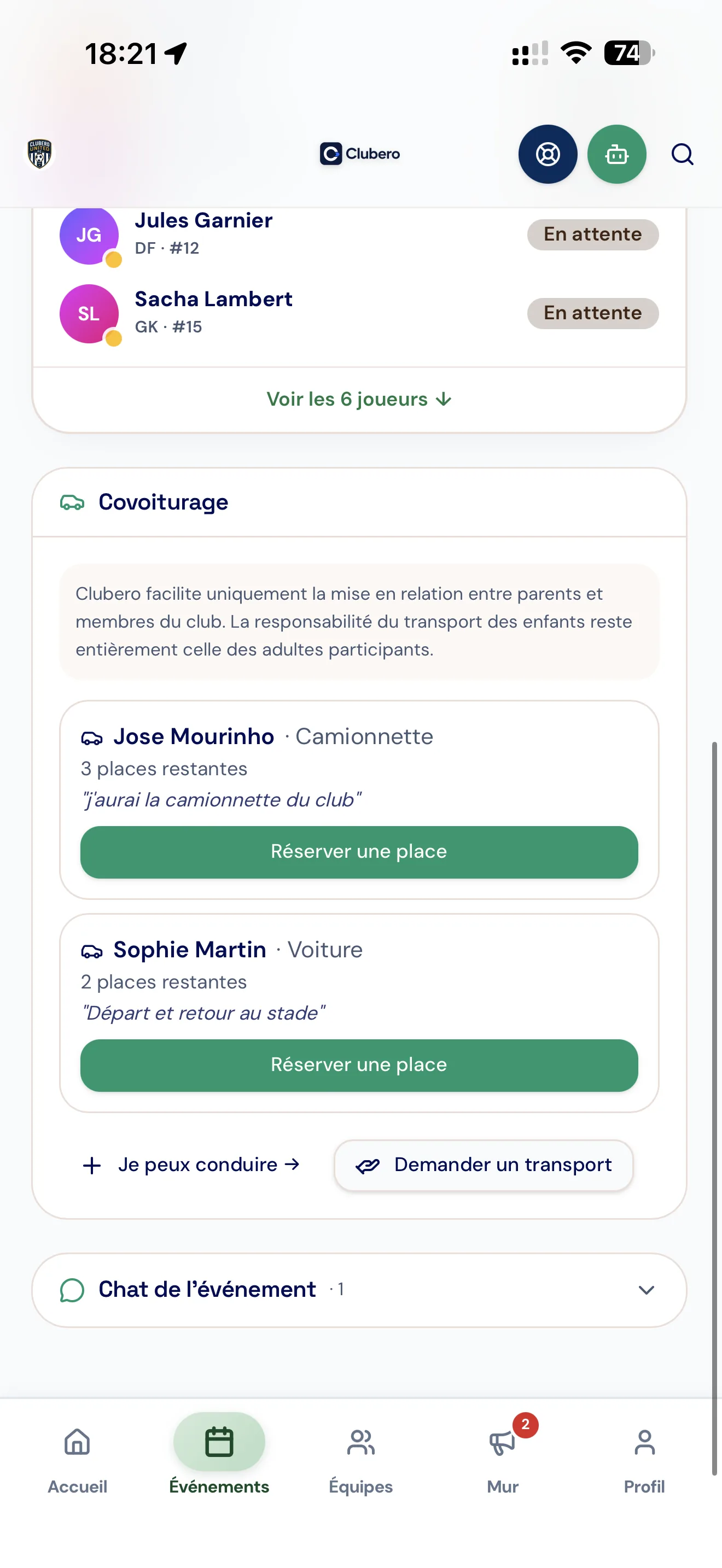
2Find the "Carpooling" card (with the responsibility reminder): you'll see the available offers.
 3
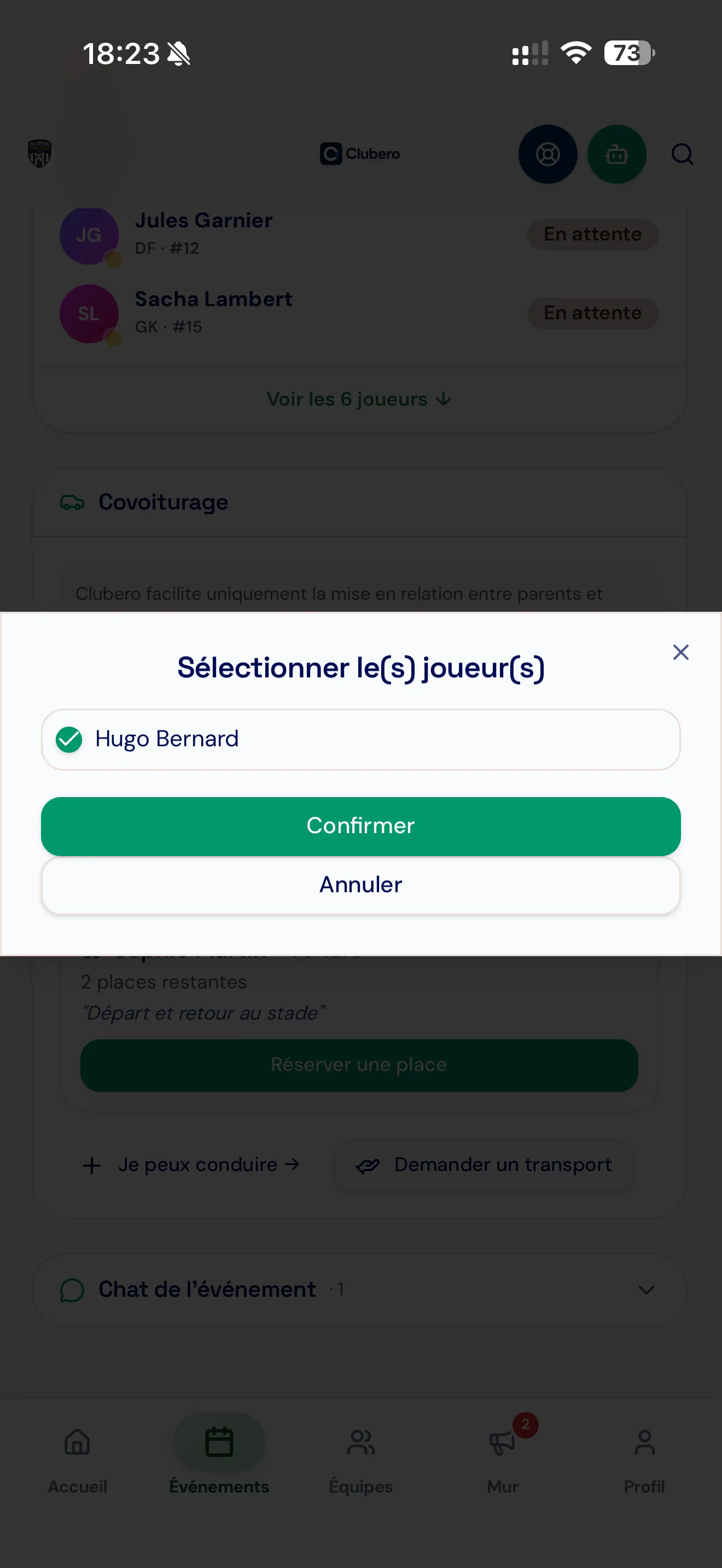
3Tap "Book a seat" on an offer to confirm your seat.
 4
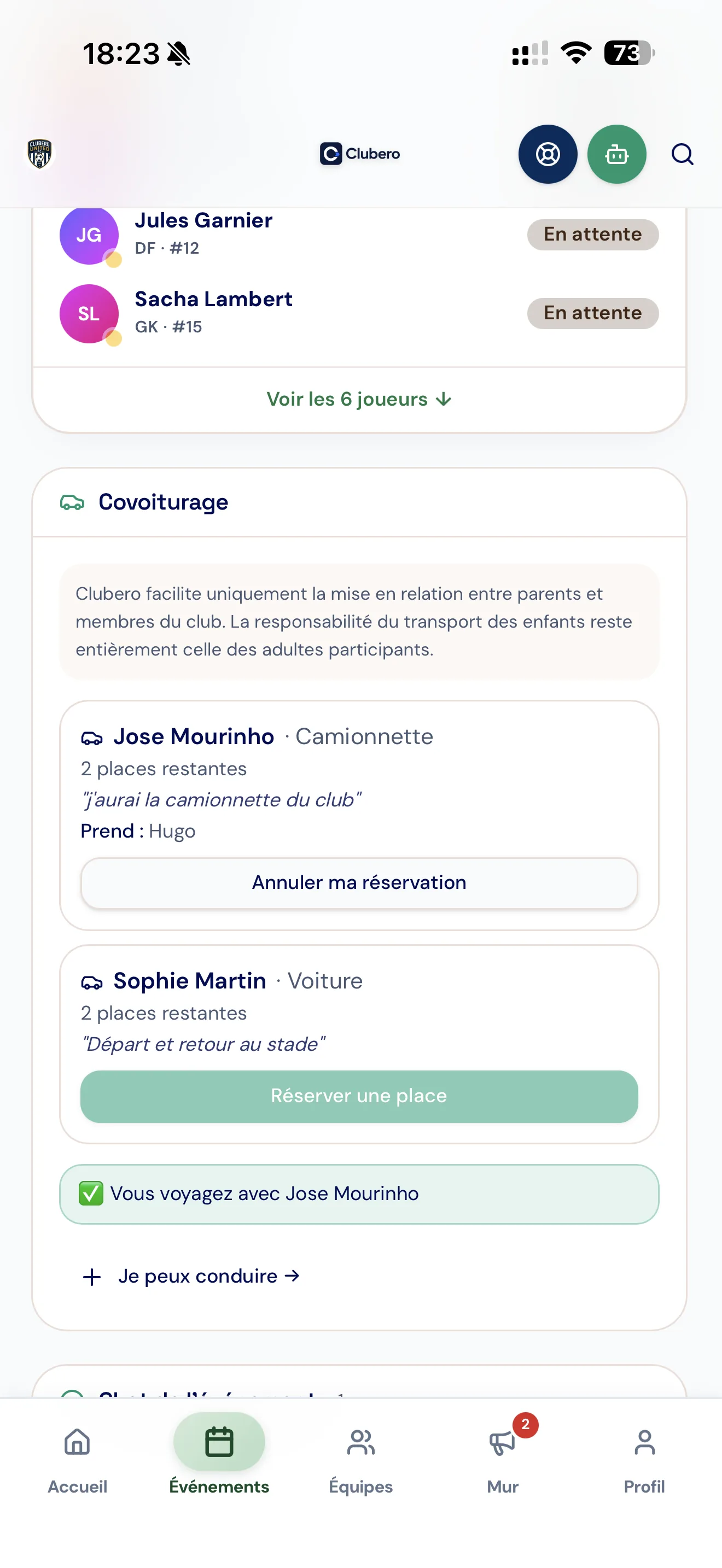
4See which player is assigned to which car; you can cancel your booking and discuss the details in the event chat.
 5
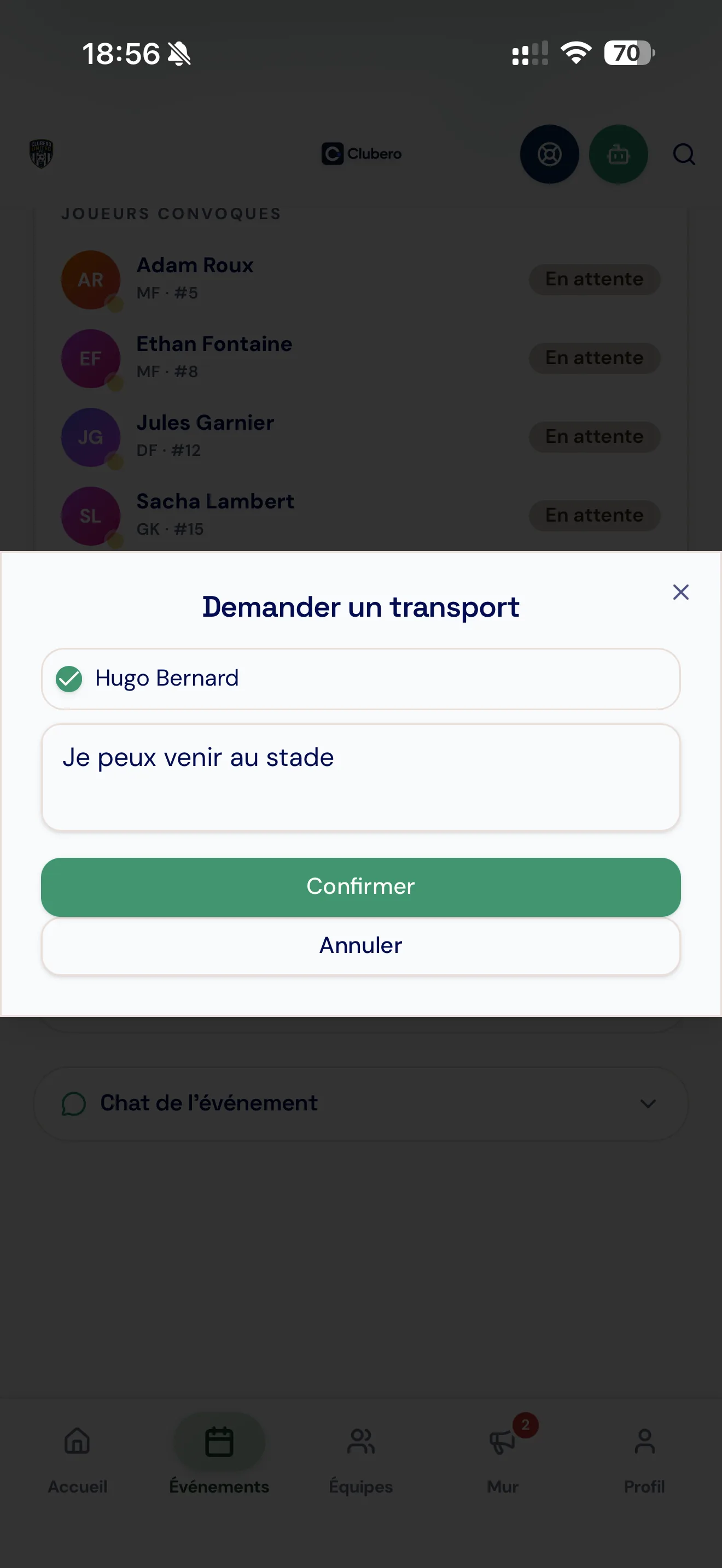
5No ride available? Tap "Request a ride".
 6
6Confirm, and add a comment if needed.
 7
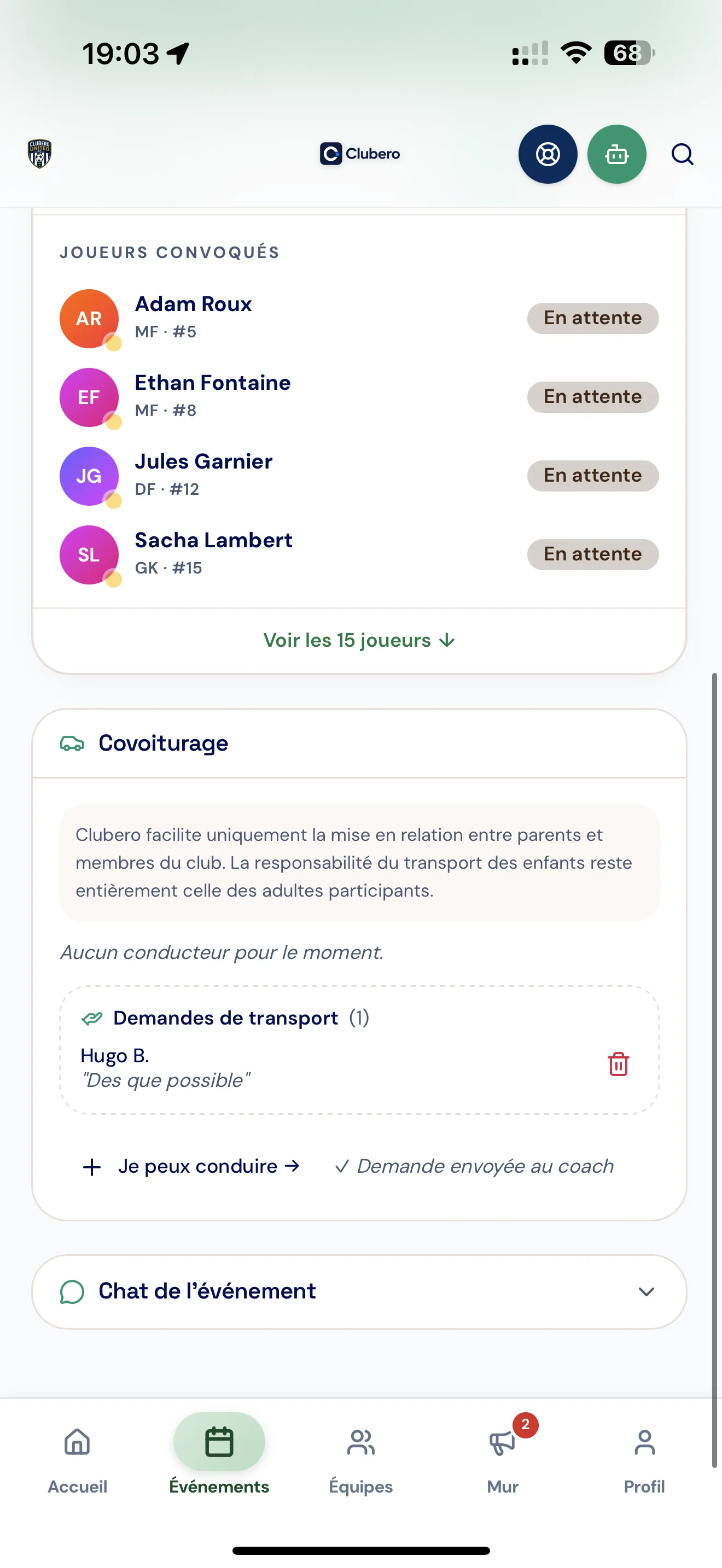
7Your request appears in the event; the coach is notified by email, along with the other parents and players.
Follow the club wall
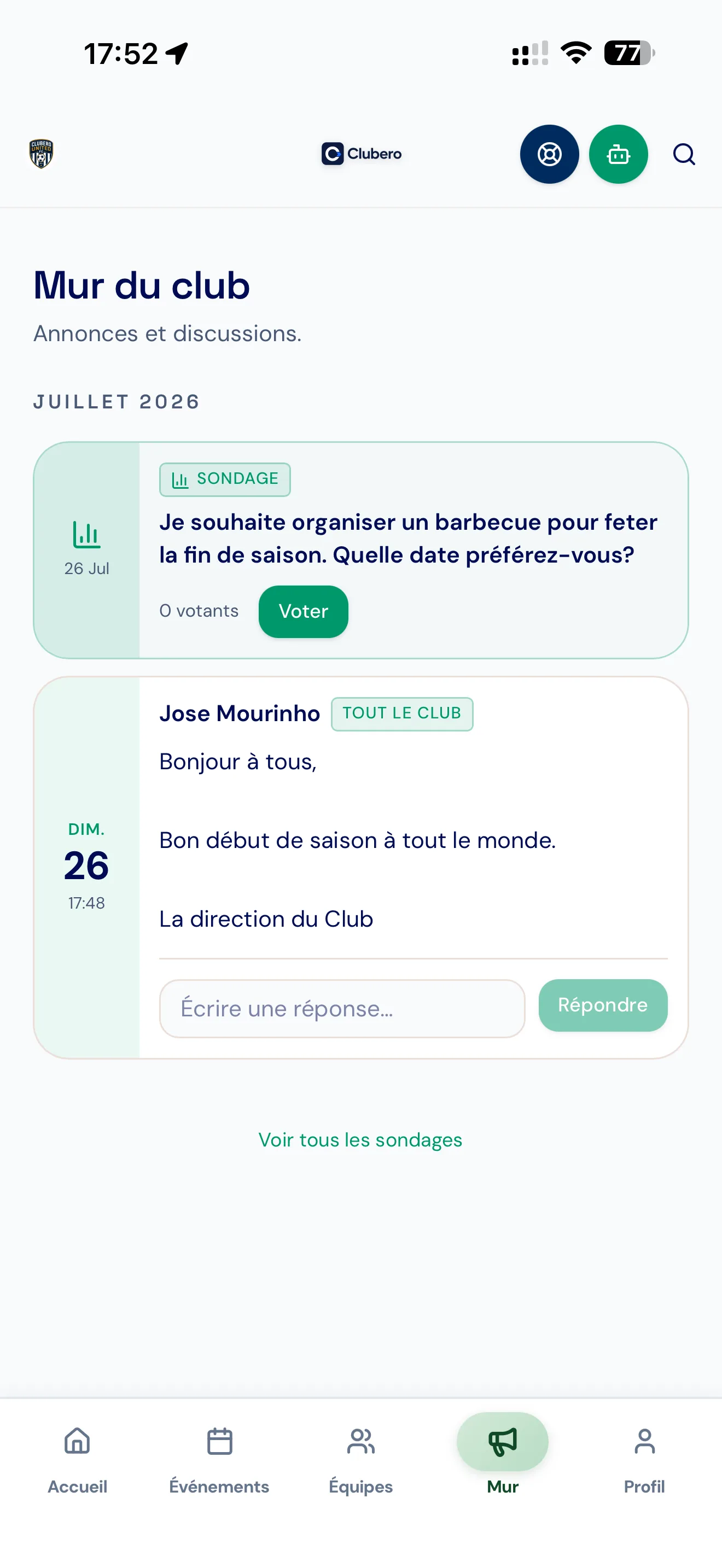
The Wall is your club's news feed: announcements, posts, polls — and soon the club's social media.
 1
1Open the "Wall" tab: you'll find the club's and coach's announcements and posts (messages, attachments, polls — and, by September 2026, the club's Instagram/Facebook posts).
 2
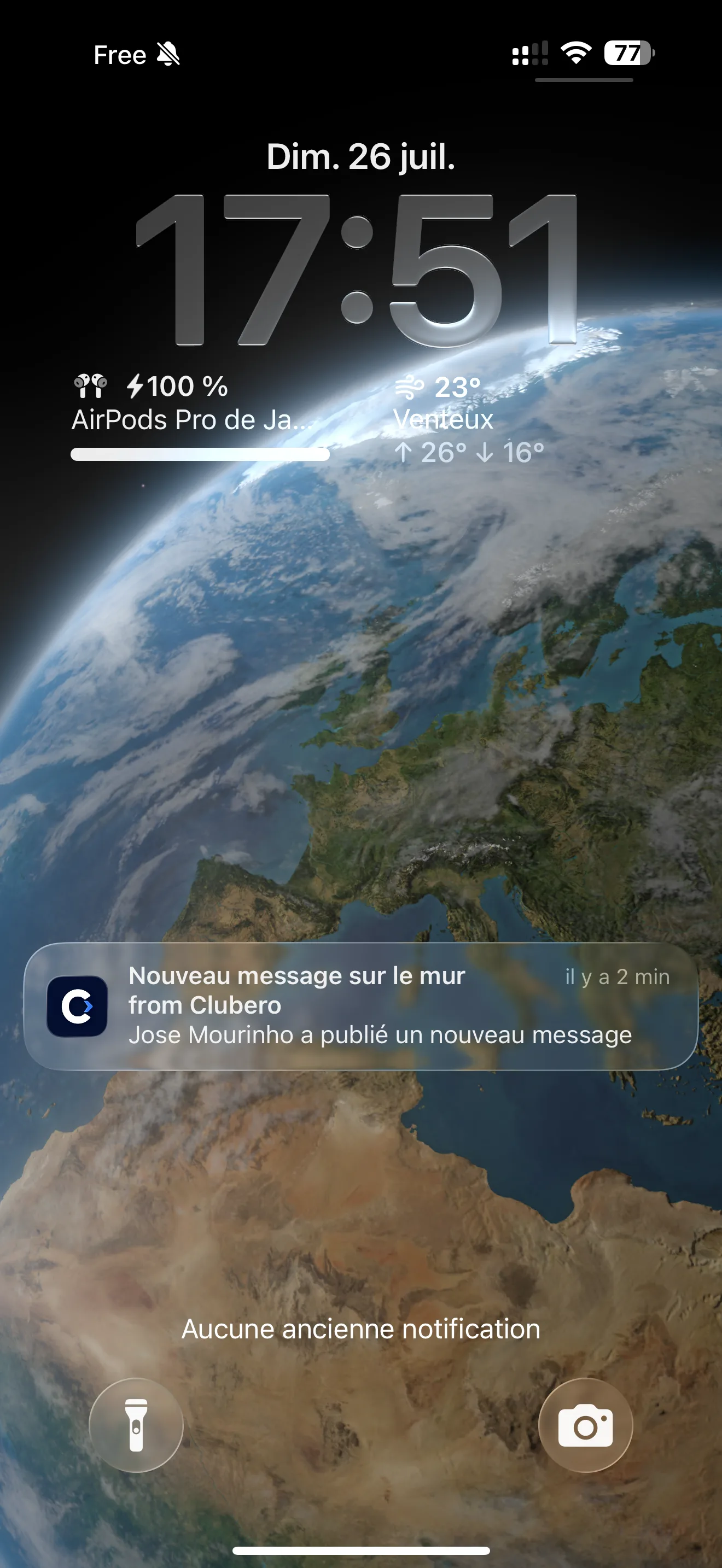
2Whenever there's a new post, you get a push notification.
 3
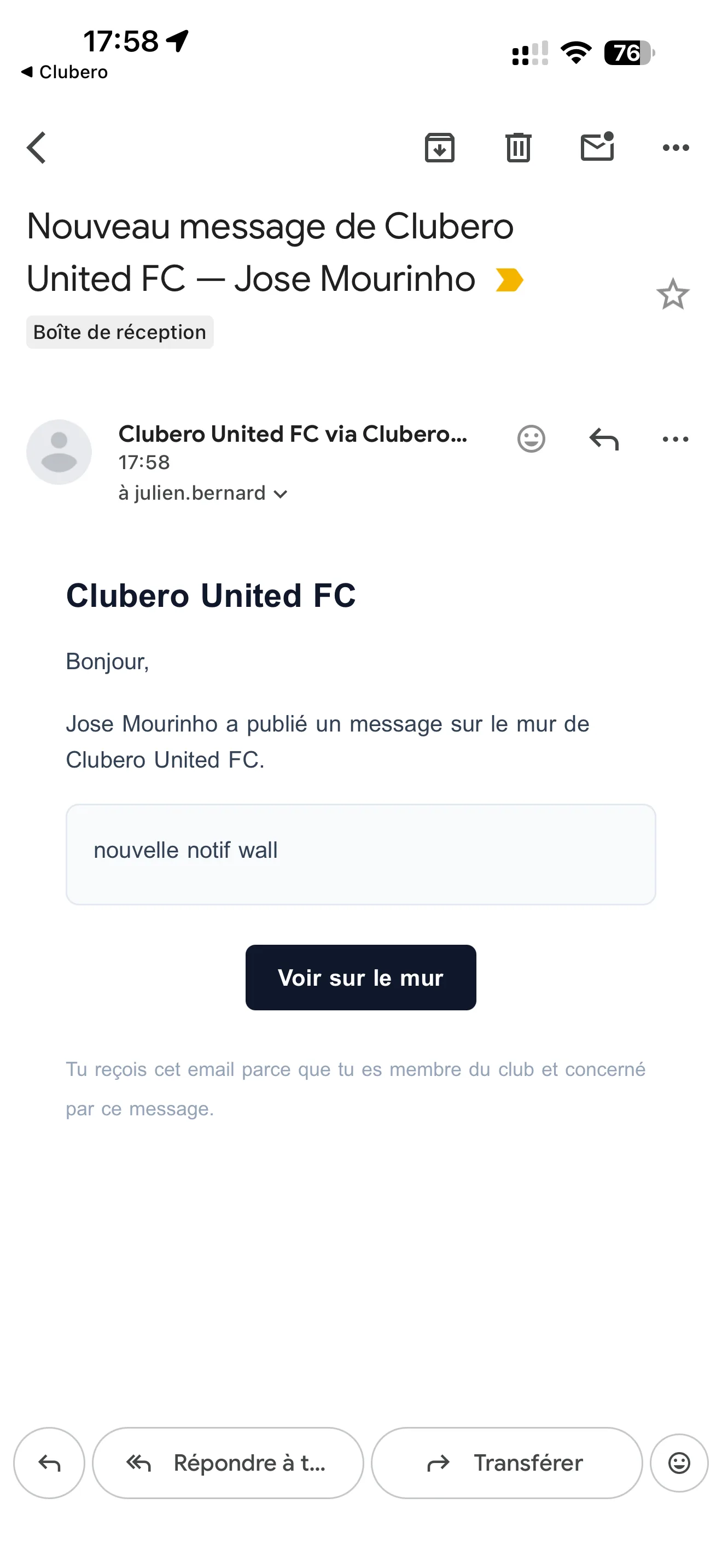
3And, depending on the club, possibly an email.
 4
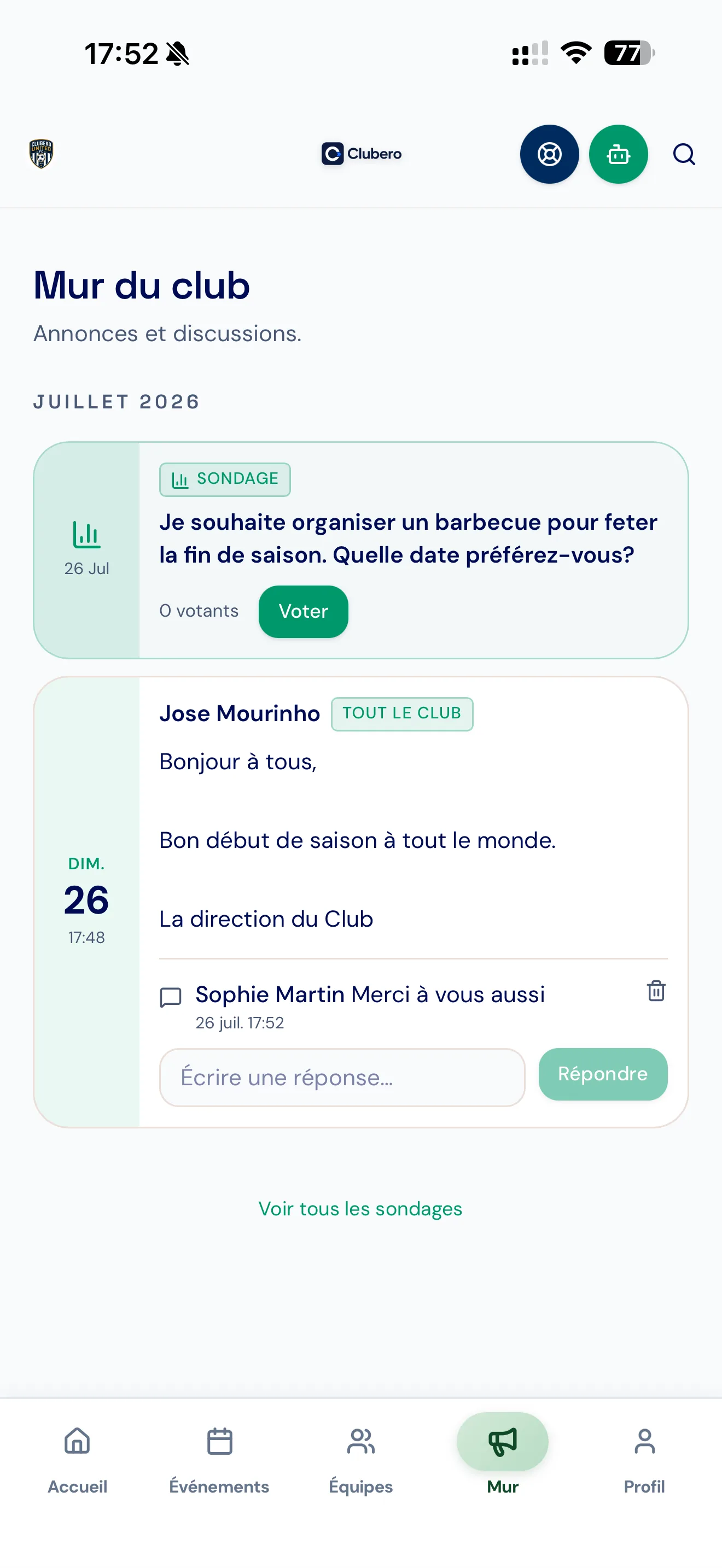
4Interact with posts by leaving a message (if comments are enabled).
 5
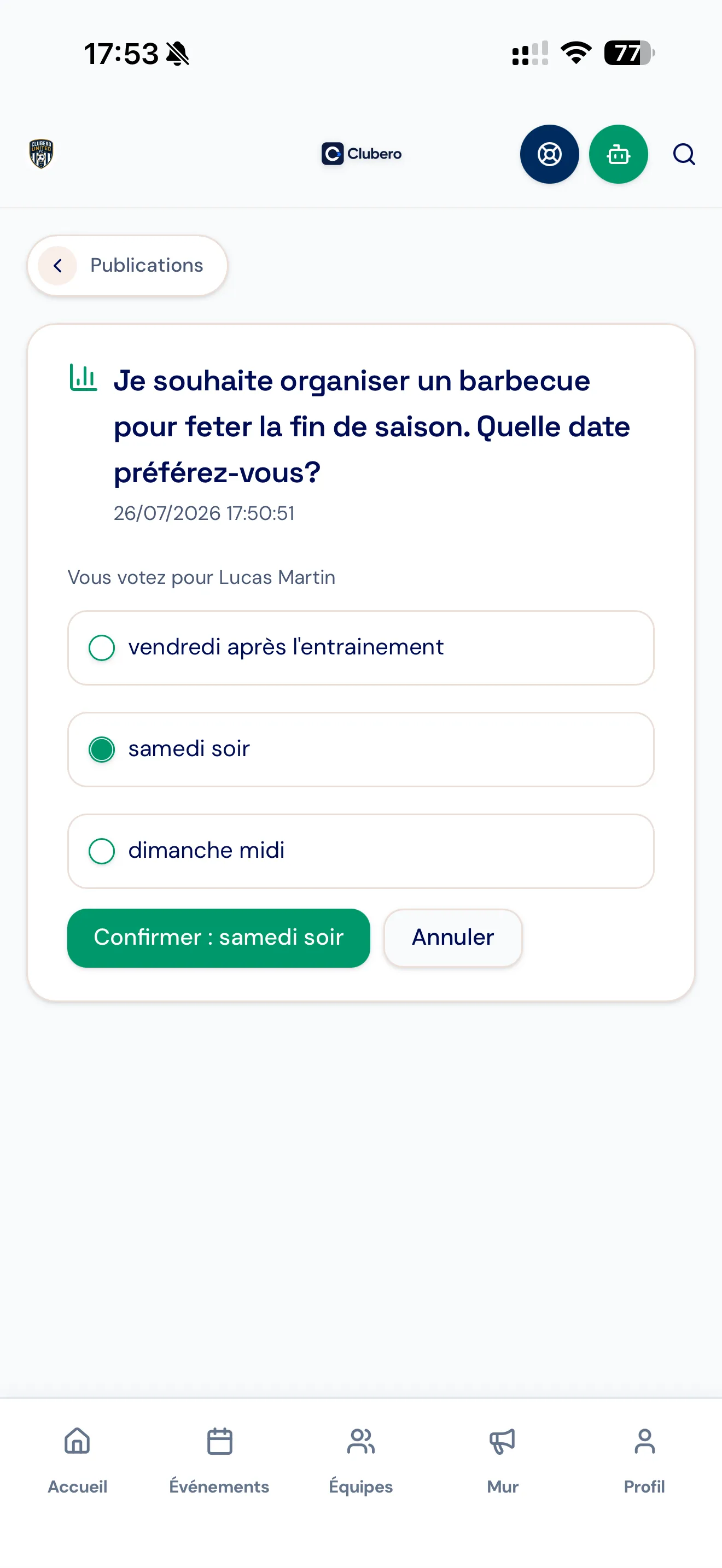
5For a poll, tap "Vote", select your answer and confirm.
 6
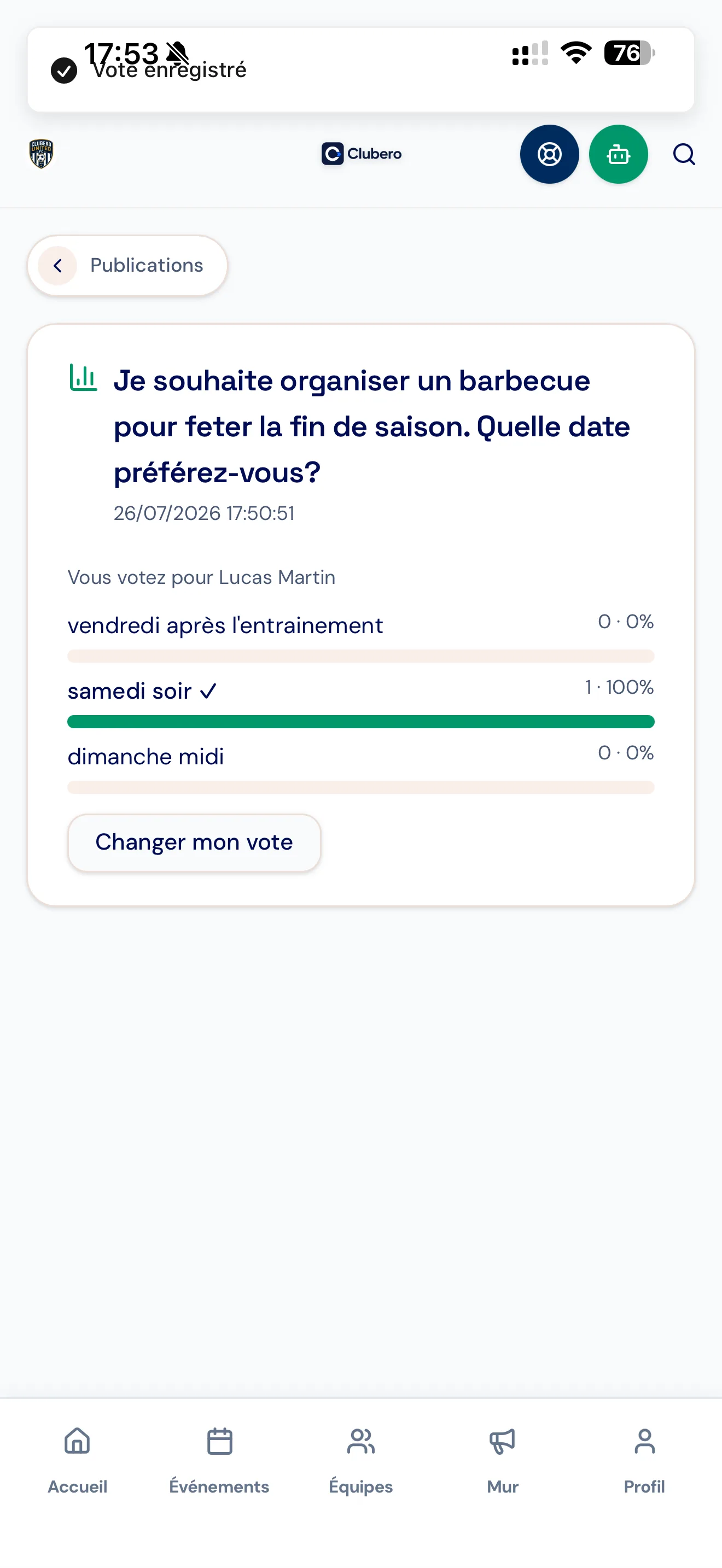
6Your vote is saved: see the live results.
 7
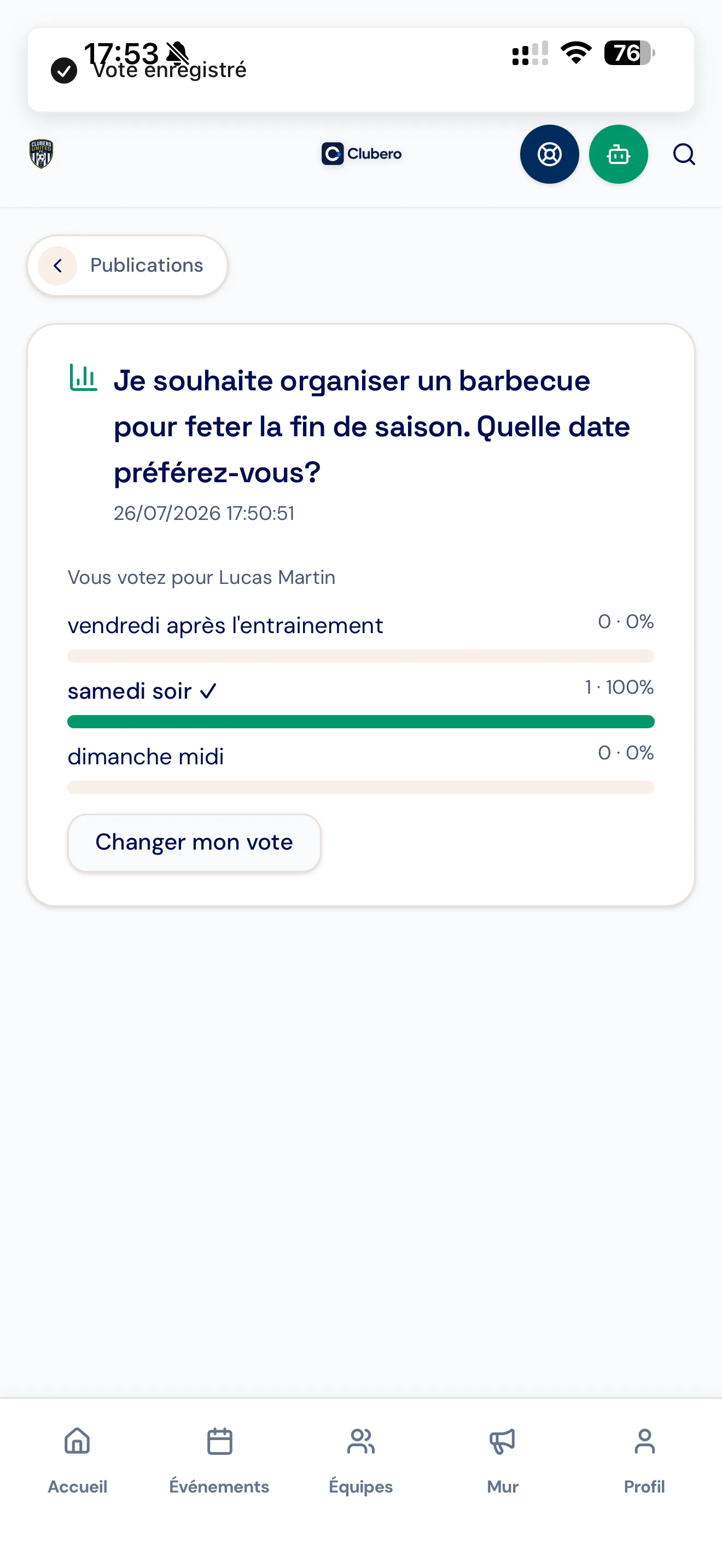
7You can change your vote anytime (unless the poll is anonymous).
Respond to the club's needs
Offer your help with refreshments, refereeing, transport or any other task organised by the club.
 1
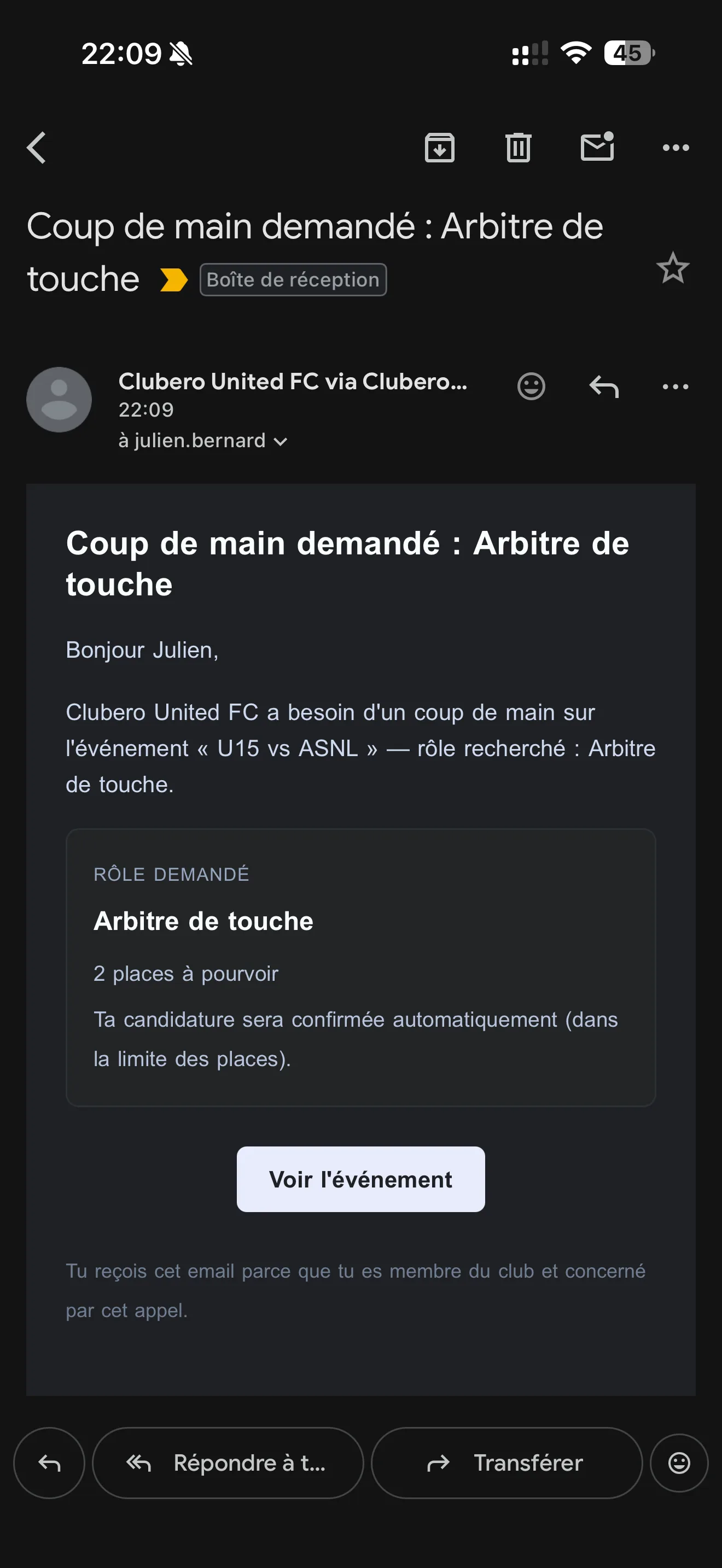
1When a coach posts a need, parents, players or both receive an email, depending on the target audience.
 2
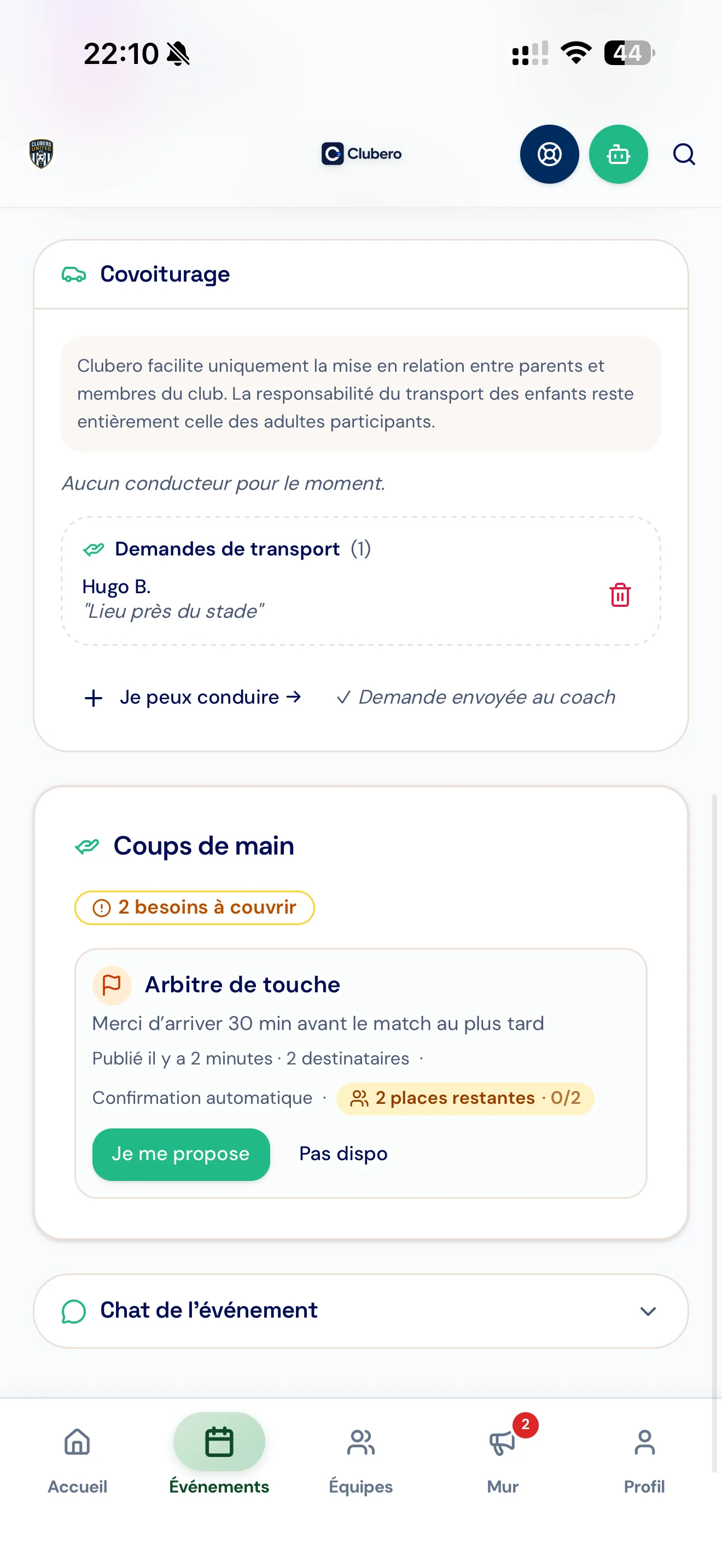
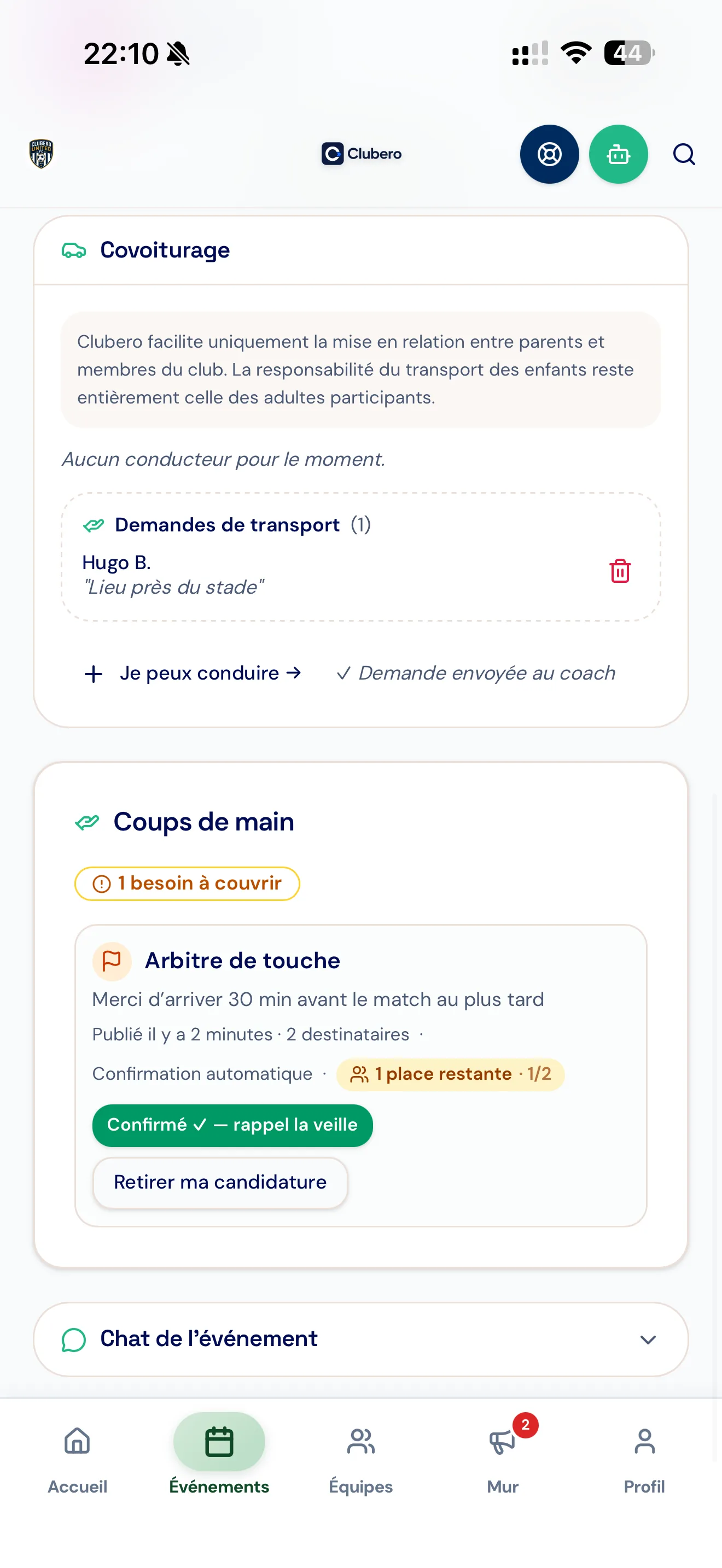
2Open the event, then the "Helping hands" tab to see the details. Indicate whether or not you are available.
 3
3If you are available, tap "Volunteer". Your participation is confirmed immediately or placed on hold for the coach's approval, then appears as "Confirmed".
 4
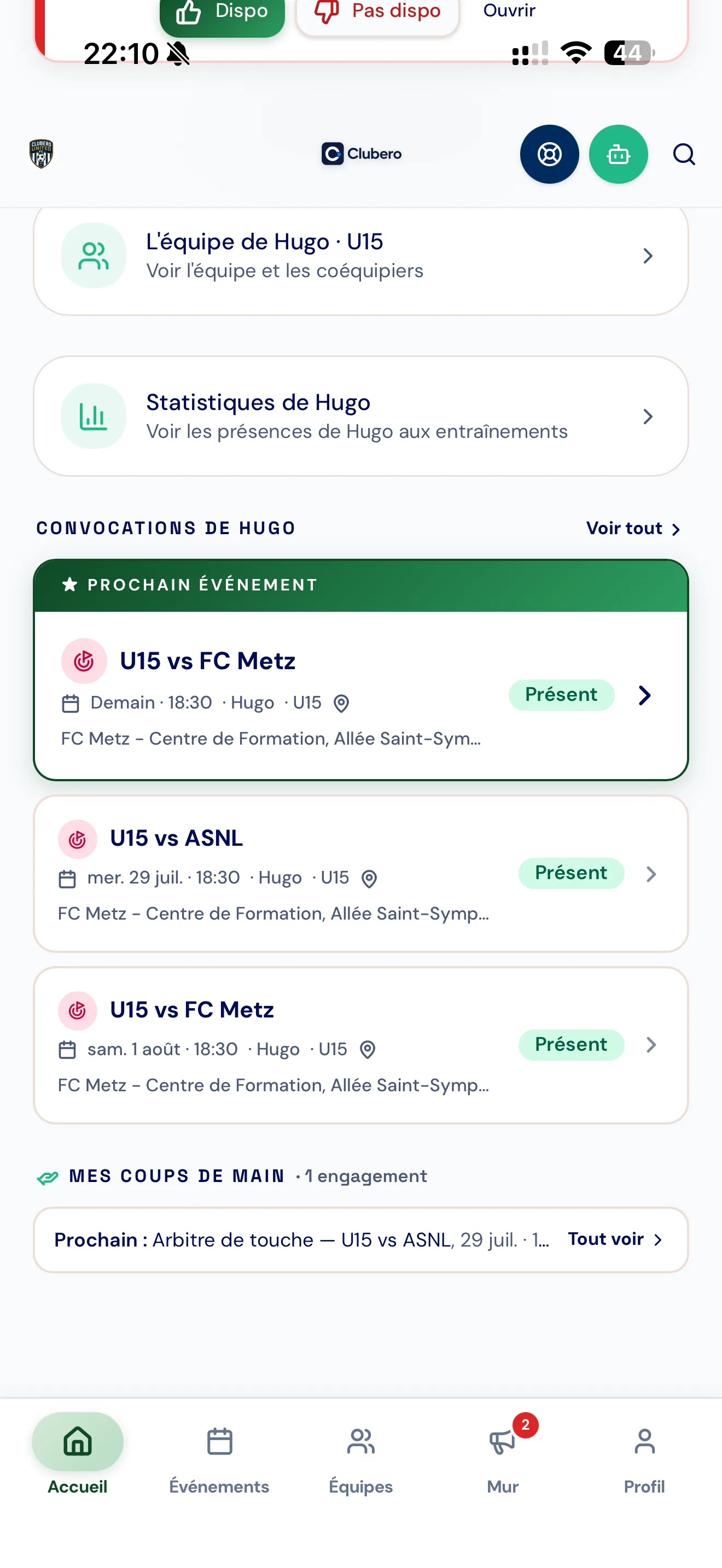
4From the bottom of the home page, open "My helping hands" to find the needs you were invited to, regardless of your response.
 5
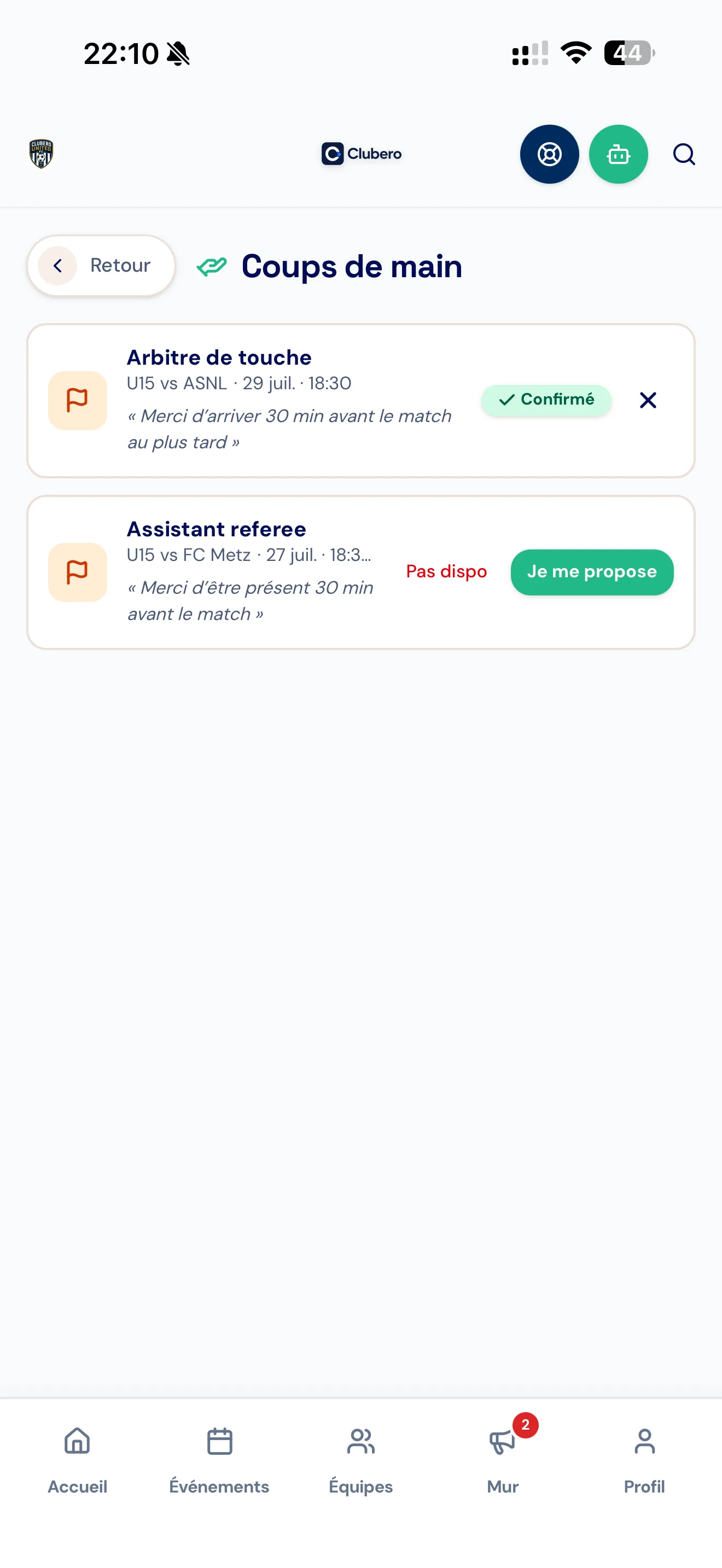
5This page lists all your needs: you can respond directly and see which ones are confirmed.
 6
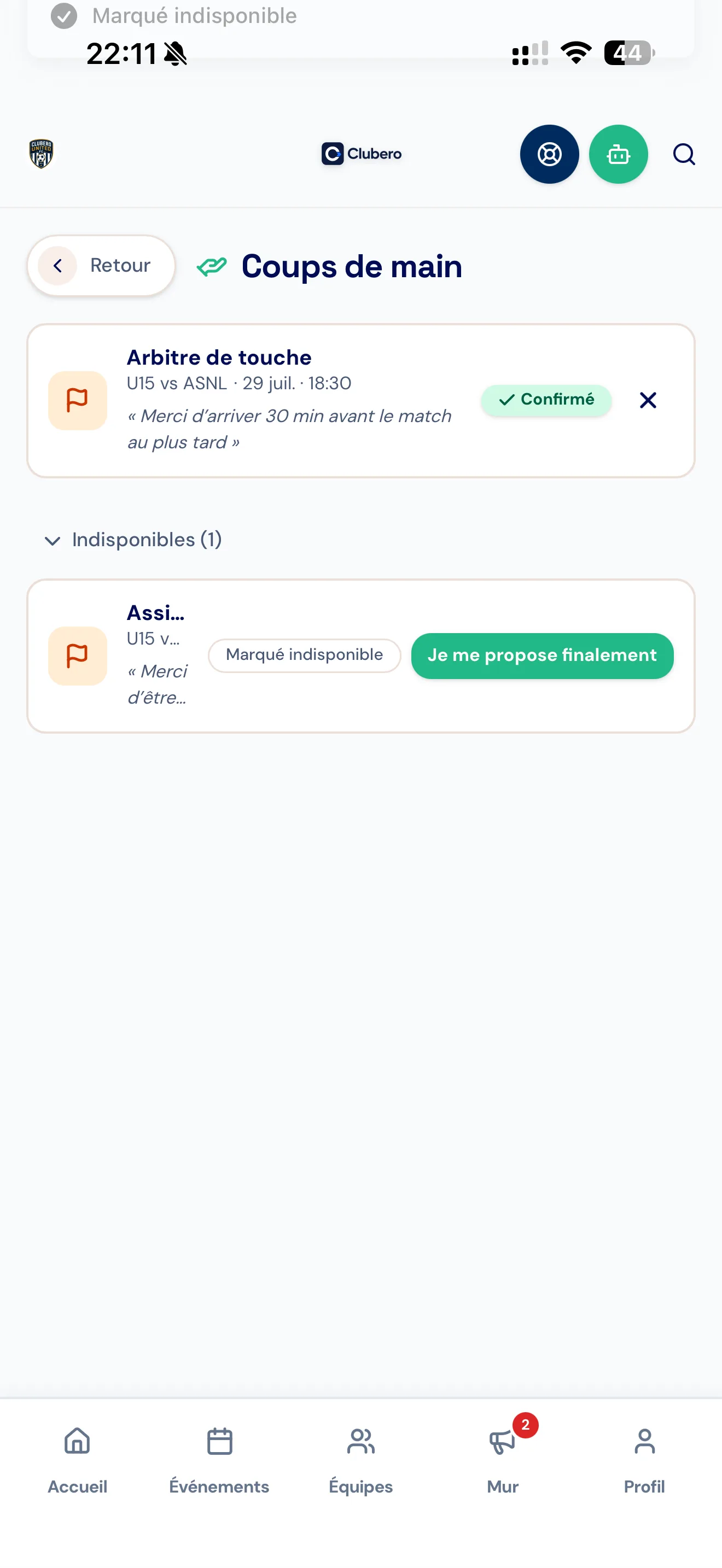
6You will also find the needs for which you indicated that you were unavailable.
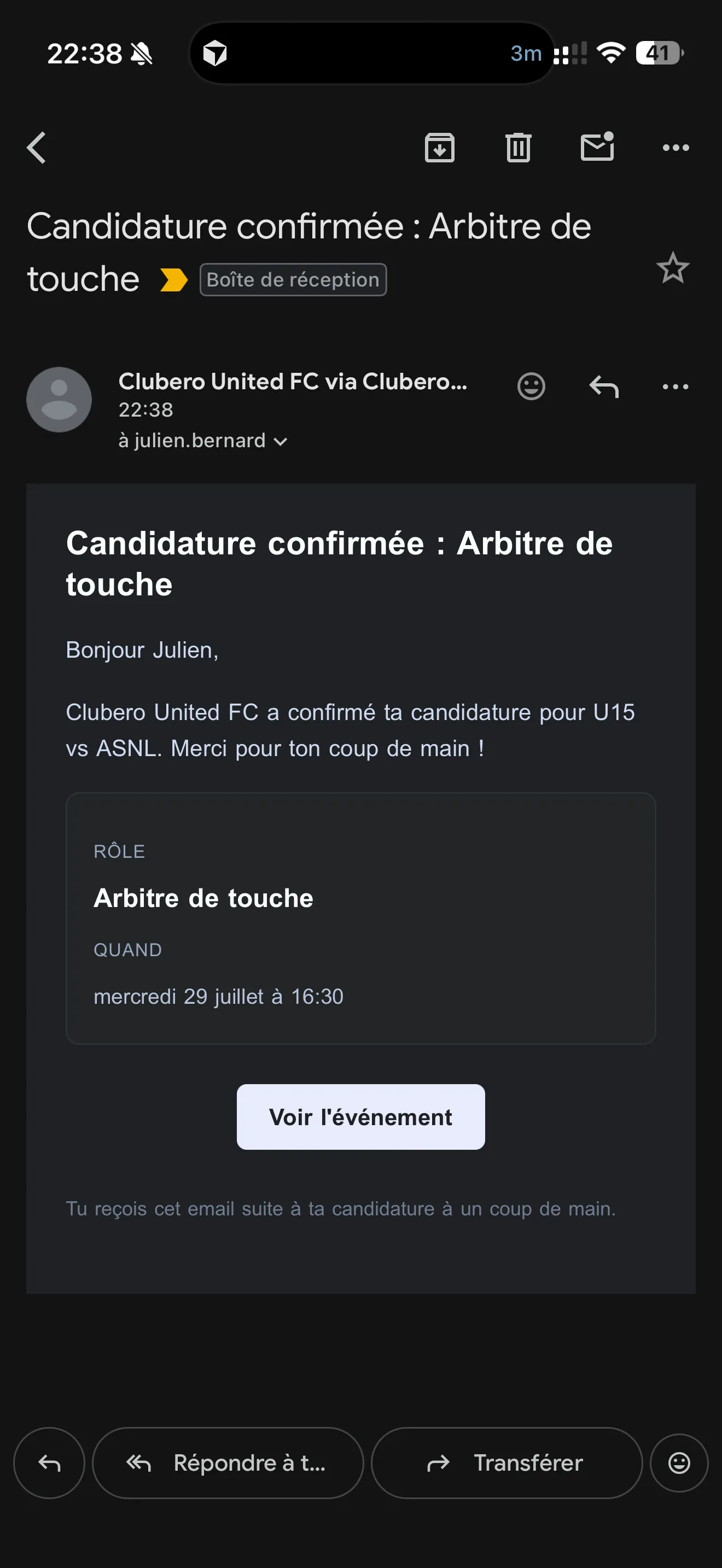 7
7When the coach accepts a pending offer, you receive a confirmation email.
Install the app on your phone
Clubero installs like an app, straight from your browser — no App Store needed. Keep call-ups and notifications on your home screen.
iPhone / iPad (Safari): Share → Add to Home Screen → Add.
Installation guideHelp and questions for parents
Account and sign-in
I haven't received my invitation.+
First check your spam or junk folder. If you still cannot find it, ask your coach to check your email address or resend the invitation.
I've changed my email address.+
Your email address is visible in Profile, but it cannot be changed in the app. If you no longer have access to the old address, contact support from the app or email support@clubero.app.
I've forgotten my password.+
Use "Forgot password" on the sign-in screen. You will receive an email allowing you to set a new password.
Can my partner access our child's account?+
Yes. Each parent can have their own account and be linked to the same child by the club.
We have several children at the club.+
You can access several children from a single parent account, provided their profiles have been linked correctly by the club.
Can my child have their own account?+
Yes, if a parent enables platform access. The child must have their own email address to receive the invitation and create their password.
Call-ups
How do I respond to a call-up?+
Open the call-up, then choose "Present", "Absent" or "Uncertain". You can also respond directly from certain call-up emails.
I selected the wrong response.+
You can change your response provided the coach has not locked responses and the event has not passed or been cancelled.
Why hasn't my child been called up?+
Call-ups are managed by the coaches. If your child does not appear, contact the coach directly.
Why can't I see the list of called-up players?+
The club may hide the full list of called-up players from parents and players. In that case, you will mainly see your own child's call-up.
Why should I respond quickly?+
Your response helps the coach prepare the squad, organise the event and plan for absences.
Can I respond directly from the email I receive?+
Yes. When the email contains response buttons, one click is enough and you do not need to sign in to the app. The response is sent to the coach immediately.
Calendar and events
Where can I find upcoming training sessions and matches?+
The "Events" page brings together upcoming events scheduled for the team. The home screen also shows up to your child's next three call-ups.
A match time has changed.+
Changes are updated automatically. Called-up players and their parents receive an in-app alert and an email; push notifications depend on the club's settings.
Can I add events to my personal calendar?+
Not currently. Clubero provides its calendar in the app, but does not yet automatically sync events with your phone's calendar.
What is an event chat for?+
It allows authorised parents, players and coaches to discuss the logistics of that event. With every new message, authorised participants receive a push notification.
Notifications
I'm not receiving any notifications.+
Check in Profile that notifications are enabled, then make sure your phone allows Clubero to send you notifications.
Will I receive too many notifications?+
Push notifications are enabled or disabled for the whole device: you cannot choose each type in Profile. The club decides which types of push notification are sent to its members.
Will I be notified if an event is cancelled or rescheduled?+
Yes. Called-up players and their parents receive an in-app alert and an email. The push notification depends on the settings defined by the club.
Will I be notified about a new Wall post?+
A push notification may be sent depending on the club's settings. The club may also choose to send an email.
Club needs
What does "Event needs" mean?+
The club may be looking for volunteers to help with refreshments, refereeing, transport or other roles. You can volunteer directly in the app.
How can I help the club?+
When a need is posted, open it and tap "Volunteer" to choose the role or task.
I volunteered but am no longer available.+
You can withdraw your offer while the need is still open and your participation is pending or confirmed.
Privacy
Who can see my child's information?+
Only people authorised by your club, such as the relevant administrators and coaches, can access the information needed to organise activities.
Can other parents see my contact details?+
No. Your contact details are not shown to other parents; they are accessible to your account and authorised people at the club.
Can I delete my account?+
Yes. In Profile → Privacy & data, request deletion of your account. It is scheduled and processed by the Clubero team; you can cancel the request while it is still in progress.
Communication and support
What is the club Wall for?+
The Wall allows the club and coaches to share messages, attachments, announcements, polls and news with families.
How do I report a problem?+
Use the Support section in the app or ask your club to pass on the problem. You can also email support@clubero.app.
Still have a question?
Our team and your club are here to help you get started with confidence.